
What is the Best Way to Run Real Time Reviews with External Clients?
The best way to run real-time reviews with external clients is using a workflow that lets everyone comment simultaneously without interrupting ongoing work. In zipBoard, reviewers, internal team members, and external clients (including guest reviewers) can comment, annotate, and reply on the same asset at the exact same time.
Running real-time reviews with external clients shouldn't mean dealing with messy screen refreshes or lost draft notes. The key to frictionless collaborative review is non-disruptive sync, allowing guest clients and internal teams to annotate, comment, and reply simultaneously without interrupting each other's workflow.
Why Non-Disruptive Sync Matters?

Simultaneous reviews usually suffer from three major pain points:
- Lost In-Progress Work: Auto-refreshing UIs sometimes clear out draft replies or partially completed markups, forcing users to re-type or re-draw feedback.
- Context Interruption: Automatic UI re-renders jump your scroll position or shift the view canvas right while you are inspecting a specific detail or timestamp.
- Stale View Confusion: Without a clear indicator that new feedback has landed, collaborators risk commenting on resolved issues or missing critical input from teammates working alongside them.
How zipBoard makes real-time client reviews effortless:
- Zero Interrupted Drafts: Auto-refreshes never wipe out your active markups or unposted replies.
- No Disorienting Shifts: Your view and scroll position stay locked while you inspect details.
- On-Demand Updates: A "New Updates" notification alerts you to new activity in the background, letting you pull in fresh comments whenever you're ready.
Real-Steps to Collaborate in Real-Time Using zipBoard
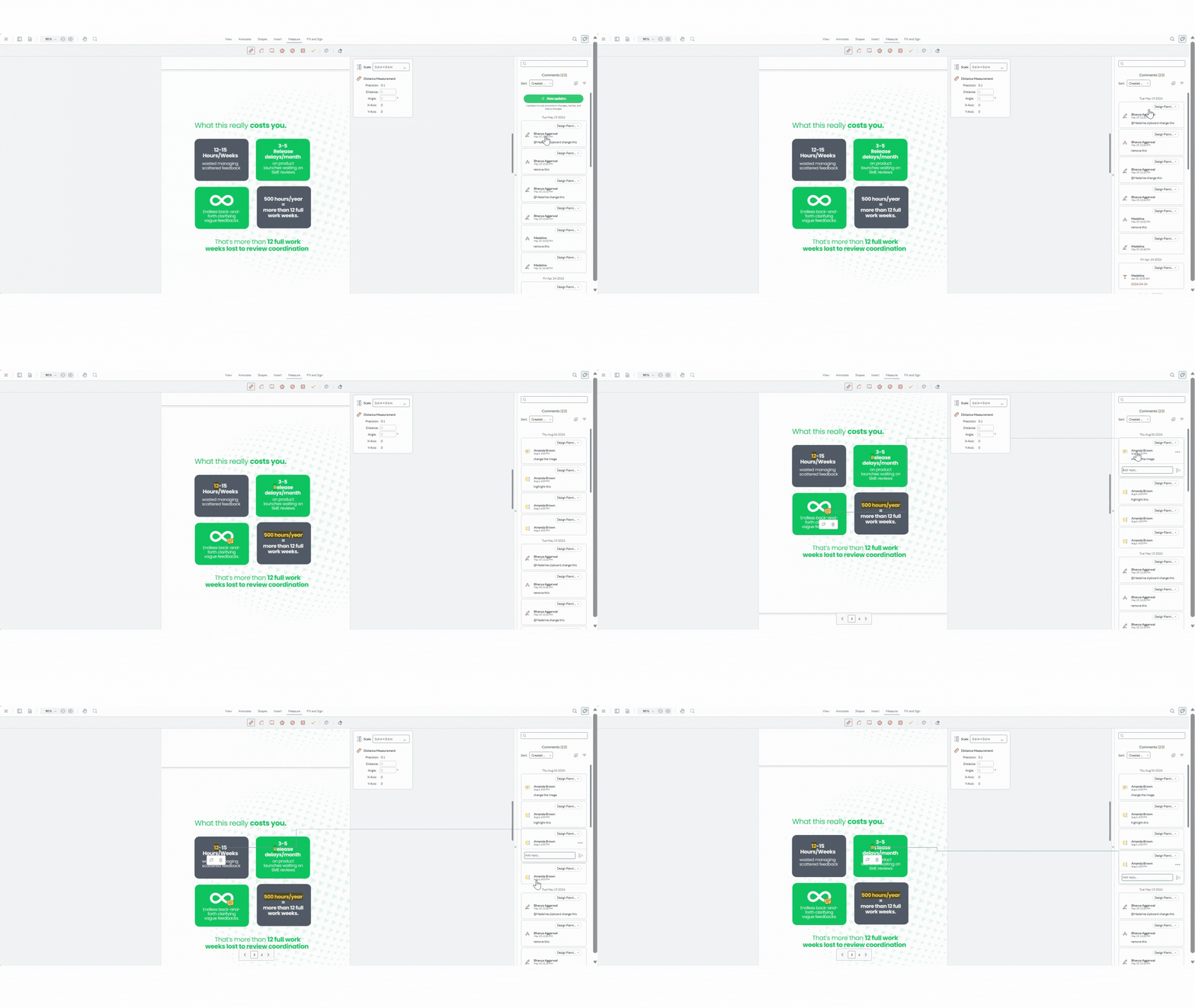
- Share the asset: Send the board or asset link to your collaborators.
- Open the asset simultaneously: Everyone with access opens the shared file (PDF, Image, Video, URL, Audio, or ZIP) in the zipBoard reviewer.
- Watch for the update trigger: As comments or annotations are added, edited, or deleted by others, a green "New Updates" button appears above the comment panel for everyone else viewing the page.
Pull in changes on your terms: Click New Updates whenever it is convenient. Your in-progress work, such as an active draft or drawing, remains untouched until you choose to update your view.
Frequently Asked Questions
Will I lose what I’m typing if someone else submits a comment or updates the asset?
No. Your active drafts and in-progress markups are completely safe. When a collaborator adds, edits, or deletes feedback, zipBoard queues those changes in the background and displays a green "New Updates" button. Your screen will not auto-refresh or clear your text field until you explicitly click the button.
Does the "New Updates" button reload the entire browser page?
No. Clicking "New Updates" performs a lightweight background fetch. It only updates the comment panel and canvas annotations, it does not reload the heavy asset (PDF, video, SCORM/ZIP package, high-res image), saving you bandwidth and preventing screen flickering.
4. Do external clients or guest reviewers need a zipBoard account to see live updates?
No. Guest reviewers and external clients accessing shared links can view, annotate, comment, and see the "New Updates" button in real time without needing to create an account or sign in.
5. I clicked the "New Updates" button, but I still don’t see the comment my teammate just added. Why?
Check your comment panel filters or sort settings. If you have active filters enabled (e.g., filtering only by "Assigned to Me" or "Open Status"), new comments that don't match those parameters will be hidden even after pulling in updates. Try resetting your filters to "All Comments."
6. What types of activity trigger the "New Updates" button?
The button appears above your comment panel whenever a teammate or client performs any of the following:
- Annotation changes: Adding, editing, or deleting visual markups or pins.
- New replies: Adding a reply to an existing discussion thread.
- Status updates: Changing the asset review status (e.g., Changes Requested, Approved, Review Complete).
7. Should I leave the review page open during a live meeting?
Yes! Multiple stakeholders can keep the same asset open simultaneously during coordination calls. Just make sure to click the "New Updates" button periodically throughout the session so everyone stays aligned on the most recent feedback.
Learn More about Real-Time Sync
- What to do if comments aren't updating live? - zipBoard Help
- Does zipBoard show real-time updates on comments? - zipBoard Help
- What happens if an annotation is edited or deleted while I'm replying? - zipBoard Help
- How does the New Updates button differ from the zipBoard email notification? - zipBoard Help
- How do real-time updates work with active filters and sort orders? - zipBoard Help
- Do external clients need an account to collaborate in real-time? - zipBoard Help