
How to Review a PDF via a Share Link
Reviewing PDFs over email leads to version confusion, missed comments, and slow approvals.
With a shared review link, you can review a PDF online, add comments in real time, and collaborate with multiple stakeholders in one place.
This guide shows you exactly how to review a PDF using a share link- no downloads or special software required.
How to Access PDF Review Link
- Click the Link: Open the URL provided to you in any modern web browser.
- Identify Yourself: If prompted, enter your name or log in. This ensures that your feedback is attributed to you so the project owner can follow up if needed.
How to Navigate PDF in the Browser
- Zoom and Pan: Use the toolbar at the top or bottom to zoom in on specific details or move between pages.
- Page Thumbnails: Use the sidebar to quickly jump to specific sections of longer documents.

How to Add Comments to a PDF
The review interface provides several tools to make your feedback clear:
- Pin/Point Comments: Click a specific spot on the PDF to drop a pin and type your comment. This is best for general layout feedback. You can mention a specific user by tagging them with a mention (@user name)
- Text Highlight: Use the text tool to highlight specific sentences and suggest copy changes.
- Drawing Tools: Use the pen or rectangle tools to "redline" or circle areas that need visual adjustment.
How to Manage feedback and Discussion
As you add annotations to the PDF, they are automatically synced with the Comment Bar located on the side of your screen. This sidebar acts as a centralized list of all feedback provided on the document.
- Direct Syncing: Every pin, highlight, or drawing you create instantly generates a corresponding entry in the comment bar.
- Navigation & Linking: The comment bar and the PDF are interactive. Clicking a comment in the sidebar will automatically jump the document to that specific annotation.
- Threaded Discussions: You can click on any entry in the sidebar to add a reply, allowing for real-time discussion between stakeholders without cluttering the document.
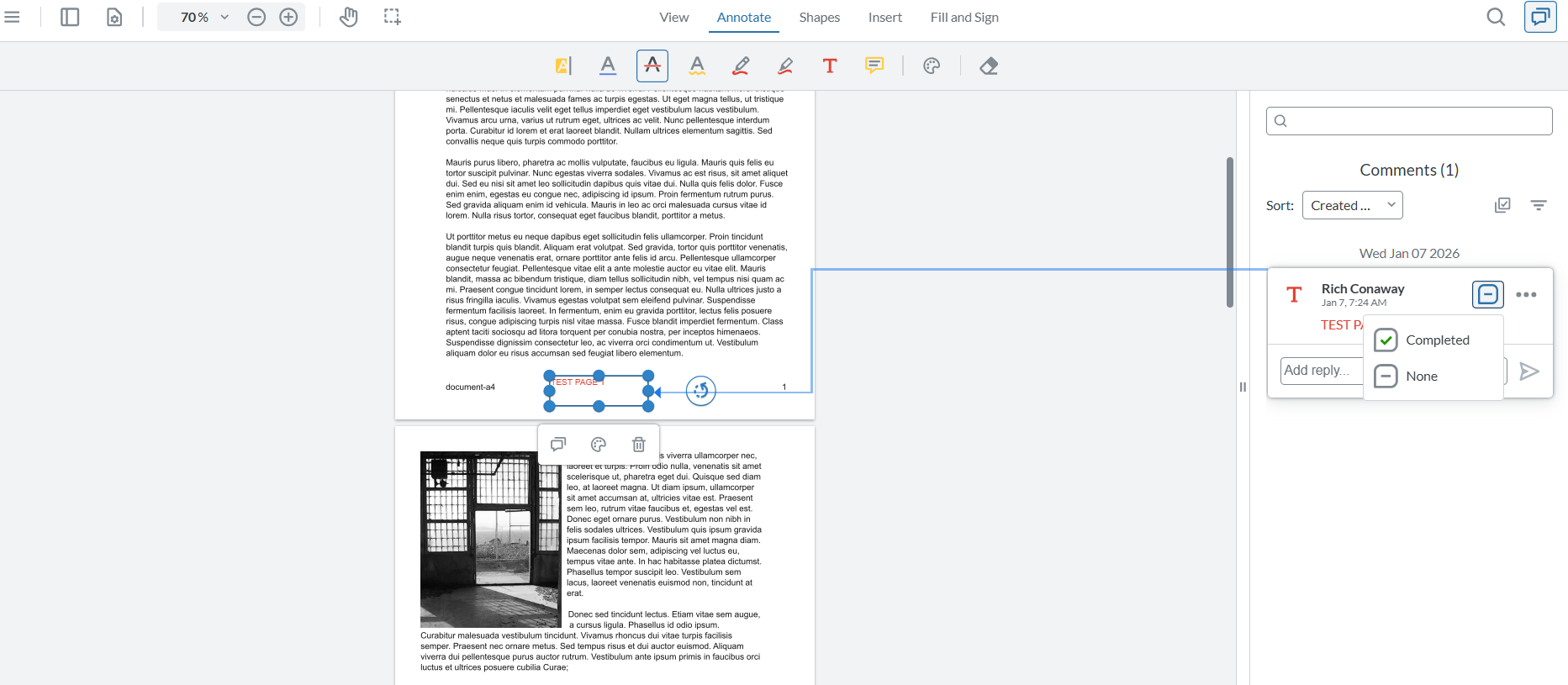
How to Track Review Progress (Open vs Resolved)
To keep the review process organized, each comment includes a status toggle:
- Open: All new feedback starts as "Open," indicating that action or a response is still required.
- Resolved: Once a suggestion has been addressed or a change has been made, you (or the project owner) can mark the comment as "Resolved."
Use the filter at the top of the comment bar to hide resolved tasks, allowing you to focus only on the remaining "Open" items.
Frequently Asked Questions (FAQ)
Can multiple people review the same PDF at the same time?
Yes, all reviewers can access the same link and leave comments in real time. Feedback is instantly visible to everyone.
Do I need to download the PDF to review it?
No, the document opens in your browser. You can comment directly without downloading anything.
How do I track who made each comment?
Each comment is tagged with the reviewer’s name, so you always know who said what.
Can I resolve comments after changes are made?
Yes, comments can be marked as resolved to keep the review organized.
Can I edit the actual text of the PDF? No, the review link is for annotation and feedback. You can suggest changes using comments or highlights, but the original file remains intact until the owner updates it.
Can I see what other reviewers have said? In most cases, yes. Comments from other stakeholders will appear in the external feedback bar. You can reply to their comments to start a discussion or comment to a suggestion/feedback.
Do I need to save my work? The system saves your comments automatically as you type them and press send, so, when you close the tab, your annotations will still be in place.
Want to streamline your PDF reviews with clients and teams? Try a shared review link and keep all feedback in one place. Try this link!
Relevant Articles
- How to Upload a PDF
- Managing Guest Reviewer Permissions
- Using Annotation Tools for Document Markup
- Email Notifications for Collaborator
- How to Share a PDF Review Link
- How to Add Comments to a PDF
- How to Resolve and Track Comments
- How to Manage Multiple Reviewers