
How to Upload and Review Videos
zipBoard projects support MP4 video uploads. Add a video from Uploads, open it for review, then pause on any frame and use the annotation tools to leave comments that your team and external reviewers can see.
How to upload and review a video
- Go to the project.

- Click Uploads in the project dashboard.

- Click ADD and select Video to upload MP4 videos.

- Choose the file you want to upload and give it a name and description.

- When the upload finishes, the file appears in the Uploads tab. Click Review in the popup, or review it from the Uploads tab.

- The play/pause button and the video duration are at the bottom edge of the player (marked with red arrows in the screenshot). See the annotation tools guide for the toolbar at the top.

- To start adding comments, select a tool from the toolbar.

- Click anywhere on the video to add annotations.


Anyone in the zipBoard project can open the file for review, add comments and annotations, and see others' annotations.
You can also share the video with external reviewers. Click the share button to get a shareable link with your chosen permissions, then send it by email or any other channel. Anyone with the link can browse and review the video.
How do I annotate a recorded video?
After you record your screen, follow these steps to annotate the recording:
- Select the video you want to review.

- Click the play button to start the video.

- Pause the video on the frame you want to annotate and click the comment tool to start annotating.


Here's a short video demonstrating the video review process:
Do reviewers have to verify their email when signing up or logging in?
If clients and users are required to log in, they must verify their account in four steps:
- Sign up or accept an invitation. When you create a zipBoard account or click an invitation link from a teammate, enter your email address and set a password. zipBoard then sends a verification email to that address.
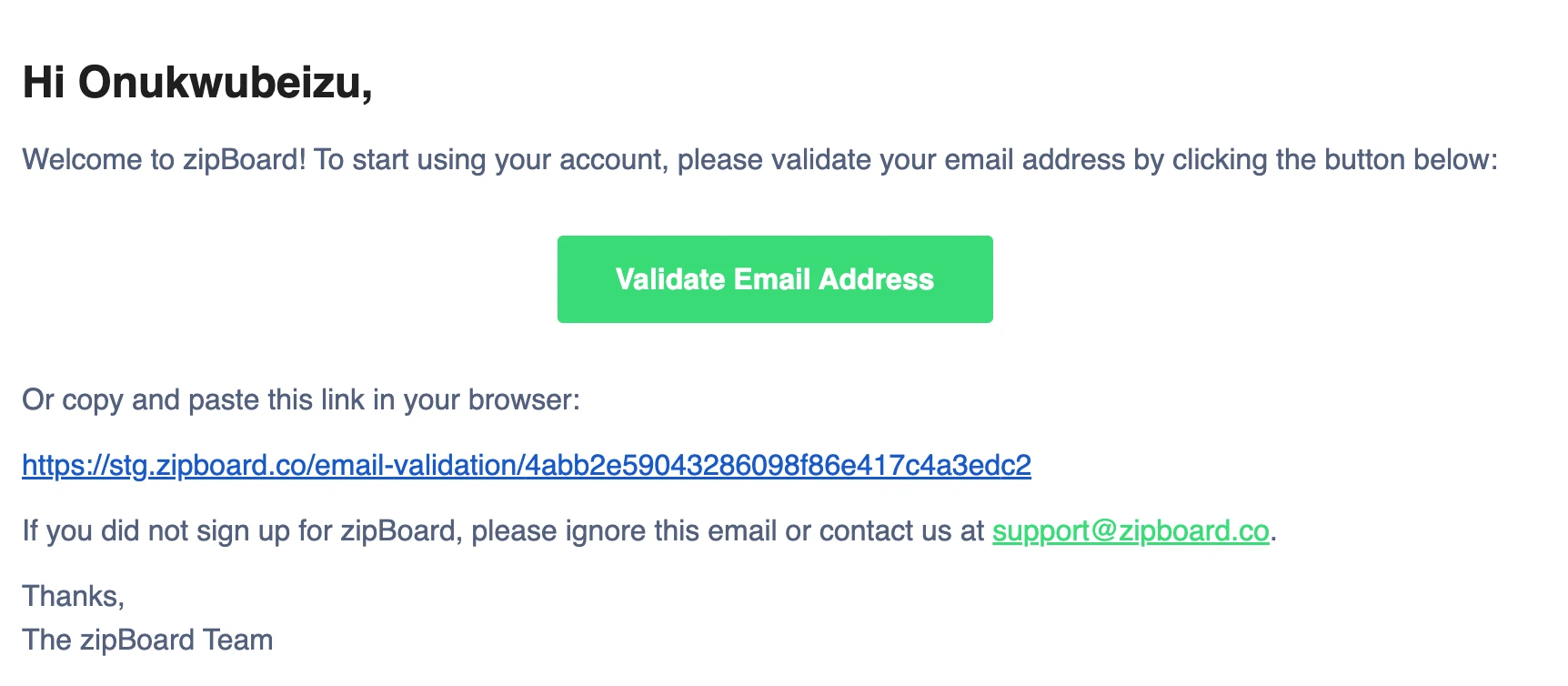
- Check your inbox. Look for an email from zipBoard with a subject line similar to "Verify your email address" or "Confirm your zipBoard account". It typically arrives within 1–2 minutes.
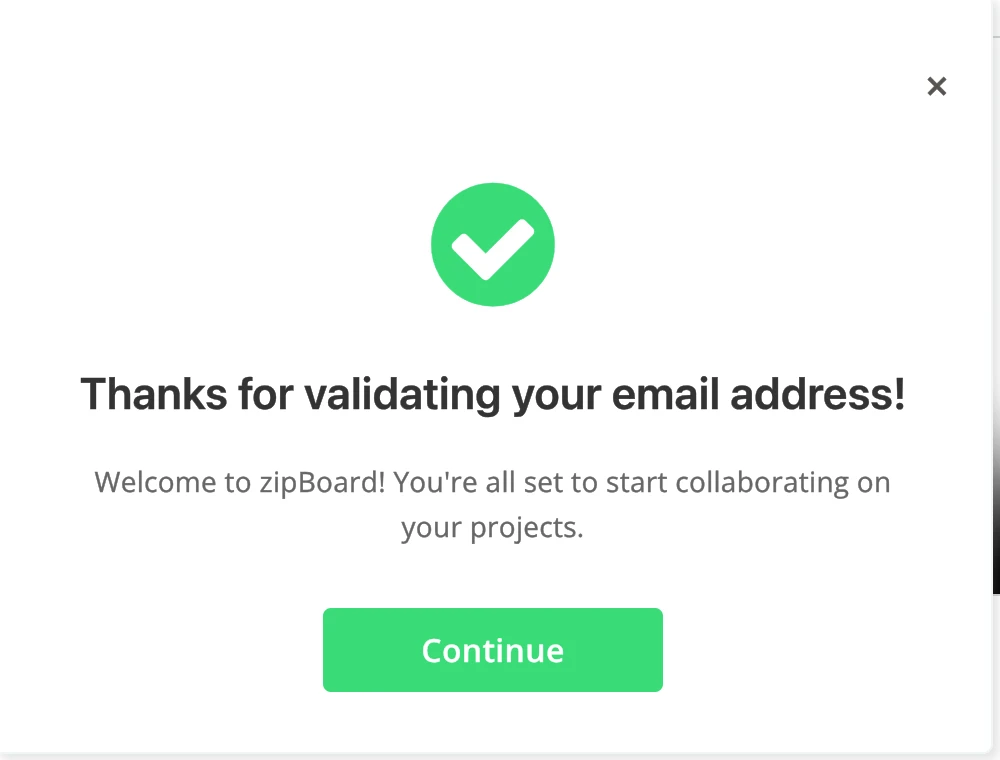
- Click the verification link. Open the email and click the Verify Email button or link. A browser tab opens confirming your email is verified.
- Start using zipBoard. Once verified, you have full access to your account and can create projects, annotate files, collaborate with your team and receive all notifications.
Tip: If you don't see the email in your primary inbox, check your Spam, Junk or Promotions folder. Corporate email filters sometimes route automated emails there.
Note: To prevent mail servers from being overwhelmed, the verification button has a 30-second cooldown. If it is greyed out, wait for the countdown to reach zero and try again.
For more, see this article on getting timestamped feedback on videos.