
How to Count Measurements on a Document
Select the Count tool from the Measure tab and click on each item or object you want to tally across your document. zipBoard automatically keeps track of the counting in your markup panel.
When to Use the Count Tool?
The Count tool is best for performing material takeoffs, fixture audits, or inventory tallies on floor plans and schematics.
- Fixture & Equipment Audits: Tallying light fixtures, electrical outlets, HVAC diffusers, or plumbing heads.
- Architectural Elements: Counting doors, windows, columns, or structural joints.
- Safety & Compliance Inspections: Recording the placement of fire extinguishers, emergency exits, or security cameras.
How to Use the Count Tool?
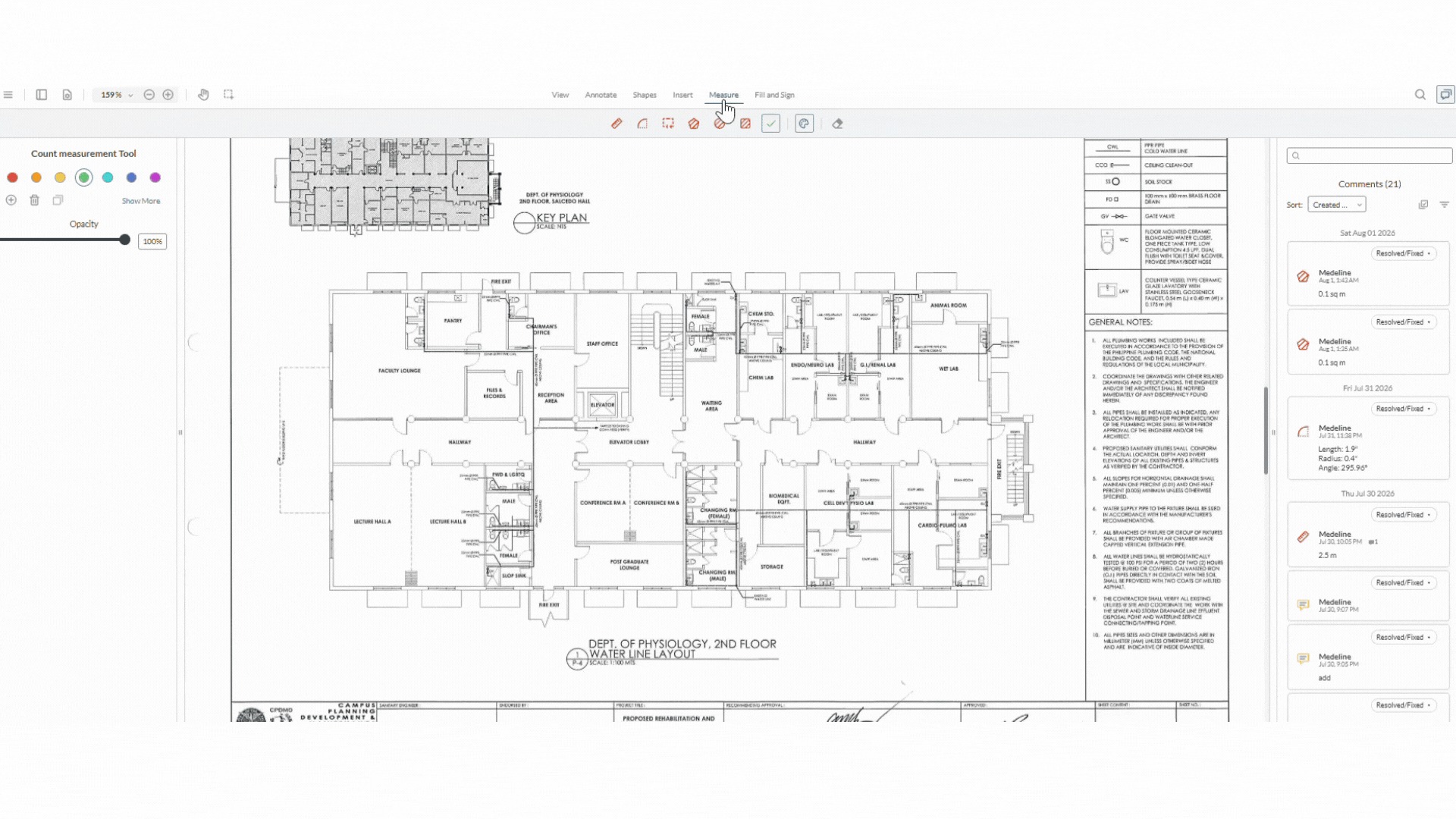
- Open Your PDF Document: Open your floor plan, schematic, or blueprint in the zipBoard viewer.
- Go to the Measurement Menu: Click the Measure tab in the main markup toolbar.
- Select the Count Tool: Choose Count (represented by the checklist icon) from the measurement menu.
- Place Your Markers: Click directly on each object or feature on the canvas you wish to tally. A numbered badge (1, 2, 3...) will appear at every click point.
- Review the Live Tally: Check the annotation side panel to view your running total and manage count categories.
Frequently Asked Questions (FAQ)
Can I customize the count icon?
Yes! You can customize the color and the opacity of the count icon, but you can’t change the icon shape or upload your own tally icon.
Can guest reviewers count items on my drawings?
Yes. External stakeholders and guest reviewers can access the Count tool and add markers directly on the sheet without needing to sign up or log in.