
How to Calibrate Scale for Accurate Measurements
To calibrate scale in zipBoard, open your PDF drawing in the review canvas, click the Measure tab and Adjust and Calibrate your Scale. Enter your paper and display units, and click Apply.
Who Is This For?
This guide is for architects, structural engineers, MEP consultants, interior designers, general contractors, and estimating teams who review PDF plans, shop drawings, and submittals and need to take accurate field measurements directly inside their review workspace
Why It Matters
In construction documentation, uncalibrated measurements lead directly to incorrect material takeoffs, miscalculated clearance checks, and costly job-site Requests for Information (RFIs). Because architectural drawings are rendered across diverse ratios, taking measurements without setting a scale baseline yields arbitrary values.
Calibrating ensures every linear run, square footage calculation, and room perimeter you draw reflects exact, real-world field dimensions.
How Easy Calibration Is in zipBoard
Calibrating scale in zipBoard takes less than 30 seconds directly in your browser:
- No Complex Setup: You don't need to manually compute scale ratios or consult external conversion charts.
- Point-and-Click Reference: Simply trace any known dimension line already printed on your PDF title block or grid line.
How to Calibrate Scale in zipBoard
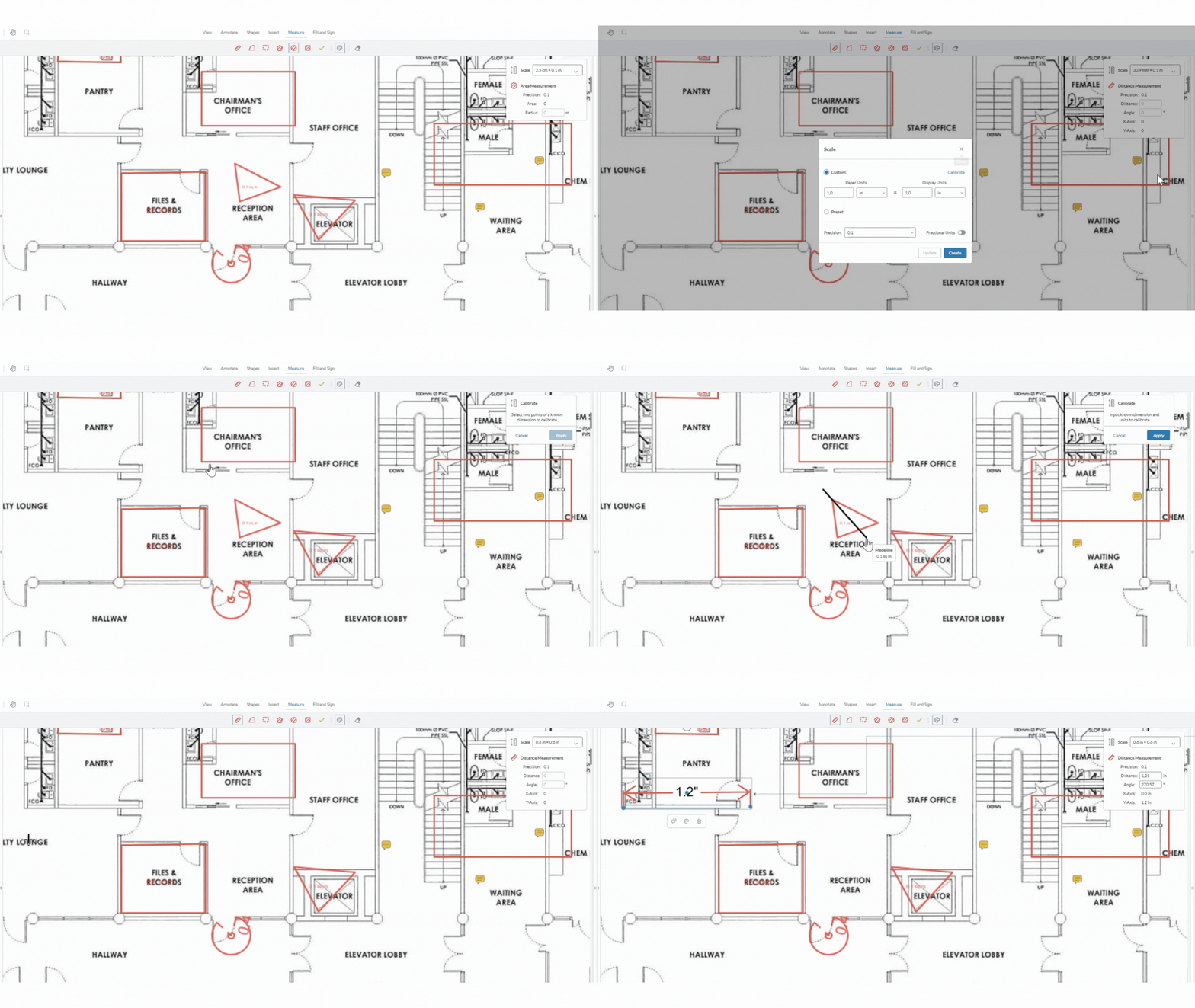
Follow these steps to calibrate your PDF plan before taking any measurements:
- Click the Measure tab.
- In the scale pop up bar, click the add new scale button
- Select two points of of a known dimension
- Select Apply.
Common Mistake: Measuring Before Calibrating
Drawing distance or area markups before calibrating your scale will result in incorrect numerical values based on uncalibrated defaults. Always calibrate and check your scale before you start measuring with the measurement tools.
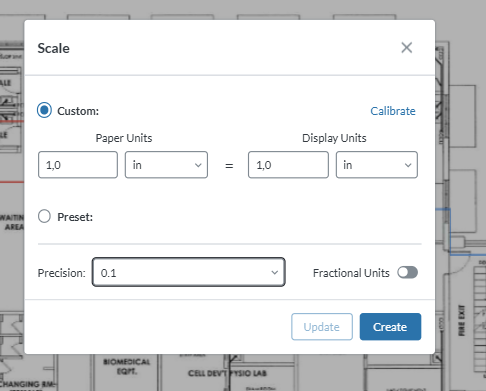
Understanding Custom Scale in zipBoard
zipBoard allows 2 types of scale: preset and custom scales. When creating a custom scale, you will see two unit settings: Paper Unit and Display Unit. Together, these two settings define your scale ratio, converting physical screen pixels into real-world construction measurements.
What Is a Paper Unit?
Paper unit is the physical measurement unit as drawn on the plan sheet (the nominal page length).
- What it represents: How big something is when measured with a handheld physical ruler on a printed sheet of paper or drawing frame.
- Common Paper Units: Inches (in), Millimeters (mm), or Centimeters (cm).
What Is Display Unit?
Display unit is the actual real-world physical dimension that the drawn line represents on the actual job site.
- What it represents: The true spatial measurement of the actual building, room, wall, or pipe once constructed in the real world.
- Common Display Units: Feet (ft), Meters (m), Inches (in), or Millimeters (mm).
Comparison Summary
| Concept | Paper Unit | Display Unit |
| Where it exists | On the drawing sheet / screen | On the real-world job site |
| Tool equivalent | Physical desk ruler on paper | Construction tape measure on site |
| Typical values | 1/4 in, 1 in, 10 mm | 1 ft, 50 ft, 1 m |
Use Case Examples
Example 1: An architect uploads a floor plan drawn to standard Imperial scale: 1/4" = 1'-0".
- Configuration in zipBoard:
- Paper Unit: 0.25 inches (or 1/4 in)
- Display Unit: 1 foot (or 1 ft)
- How it works: When you trace a 0.25 inch line on the PDF canvas, zipBoard recognizes that 1/4" on paper equals 1 foot in the real building. If you measure a hallway that measures 2 inches on the digital canvas, zipBoard automatically displays 8 ft.
Example 2: An MEP engineer reviews a structural mechanical plan drawn to a metric scale of 1 : 100 (where 1 cm on paper represents 1 meter on site).
- Configuration in zipBoard:
- Paper Unit: 1 centimeter (or 10 mm)
- Display Unit: 1 meter (or 1000 mm)
- How it works: Tracing a room boundary that measures 5 cm on your PDF sheet will output a real-world display value of 5 meters (or 25 sq m for area takeoffs).
Frequently Asked Questions (FAQ)
Can I save custom scale ratios for future use?
Yes. Once you set up paper and display unit values under Add New Scale, the customized scale will be saved and you can reuse it.
How do I edit or adjust an existing scale setting?
Click the measurement annotation, adjust and calibrate your scale with a paper unit and display unit in the scale pop up, choose the existing scale setting you want to modify, and select Apply.