
How to Use Multiple Scales in One Drawing Set
When reviewing complex blueprints and multi-page PDF sets, different detail views, floor plans, and section elevations often require distinct measurement calibrations. zipBoard allows you to define, apply, and save independent scales for each annotation across your entire drawing set without affecting other markups.
How Scales in zipBoard Work?
- Each measurement annotation operates on its own dedicated scale. Modifying or creating a new scale for one markup will not reset, overwrite, or alter any existing annotations on the canvas.
- Every custom scale you define is automatically added to your scale dropdown menu, making it instantly available for future measurements across the project.
- Seamlessly measure large-scale master plans and high-detail inset views on the exact same sheet without needing to re-calibrate your document view each time.
How to Apply Different Scales to Annotations
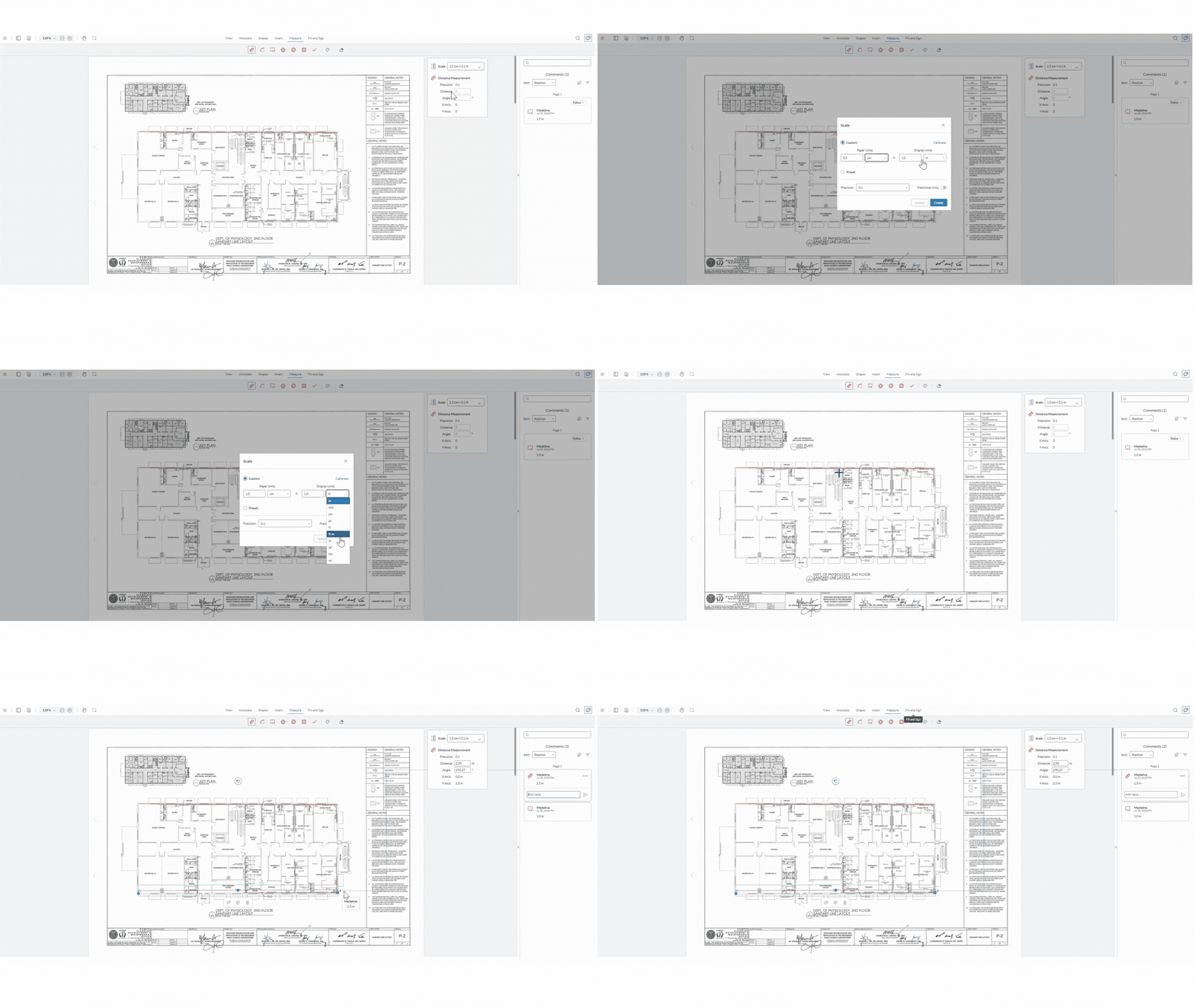
- Select a Measurement Tool
Click on the Measurement icon from the markup toolbar and pick a tool that you would like to use.
- Set the Annotation Scale:
- Choose an Existing Scale: Open the scale dropdown in the markup property bar and select a previously saved ratio.
- Define a Custom Scale: Select Add New Scale, enter your known length and corresponding real-world distance (e.g., 1/4" = 1'-0" or 1 cm = 2 m), an click Save.
- Draw on the Canvas
Place your measurement on the desired section or area.
- Re-use Saved Scales
Any newly created scale automatically populates in your dropdown list. When you move to another detail section or page, simply pick your saved scale from the menu.
Best Practices for Multi-Scale Documents
- Check the Title Block First
Always verify the drawing scale listed in the title block or detail view callout before placing your measurement.
- Guest Reviewer Access
External stakeholders or guest reviewers can take measurements using your saved scale presets without needing an account or login.
Frequently Asked Questions
Will changing the scale on a new annotation alter my existing measurements?
No. Every annotation retains its specific scale independently. Changing or adding a scale for one markup has zero effect on other markups across the sheet.
Where do my custom scales go after I create them?
They are automatically saved directly into your scale dropdown saved scales, so you can re-apply them to any subsequent annotation with a single click.