
Getting Started with zipBoard: For Learning Designers
Learning designers can use zipBoard as one place to upload, review, annotate and track feedback on SCORM/HTML courses, instructional videos and eLearning PDFs. Set up a project, upload your materials, collect annotated feedback from stakeholders, then manage versions and reports as you iterate.
Managing and collaborating on SCORM packages, instructional videos and eLearning PDFs can be challenging. zipBoard simplifies this with a central platform for reviewing, annotating and tracking progress.
Step 1: Set up your project
- Log in to zipBoard and click Create a New Project.
- Name your project or specify the type of learning materials you'll review (for example, SCORM Modules, Training Videos, PDF Guides).
- Set statuses at the project level (for example, Draft, Review, Final) to reflect your workflow.
Pro tip: Organize your project into boards, such as Storyboard Review, SCORM Testing and Video Feedback.
Step 2: Upload learning materials
- Go to your project dashboard and click Add Files.
- Upload SCORM packages, video files or PDFs. For SCORM content, zipBoard can host and preview the content directly.
- Categorize files into boards (for example, Module 1, Assessments) to make navigation easier.
Example: Upload a PDF guide for Module 1 and categorize it under Learner Handouts.
Step 3: Annotate and review content
- Open any uploaded file (for example, a SCORM module, video or PDF).
- Use the annotation tools to:
- Mark issues or suggest edits directly on the file.
- Add timestamps on videos for precise feedback.
- Highlight text in PDFs to point out errors or suggest revisions.
- Reply to comments, accept or reject feedback, and mark annotations as Resolved or Cancelled.
Pro tip: Use comment threads to collaborate with stakeholders in real time.
Step 4: Track SCORM package testing
- Preview SCORM content directly in zipBoard to test navigation, interactivity and completion tracking.
- Report bugs or inconsistencies by creating tasks linked to specific slides or elements.
Example: If a quiz question in a SCORM package doesn't load, highlight the issue and tag the developer to fix it.
Step 5: Share learning materials with stakeholders
- From the project dashboard, select the SCORM package, video or PDF you want to share.
- Click Share Link and set permissions:
- Viewer Only: Reviewers can view the material without editing or commenting.
- Commenter: Reviewers can add annotations or comments.
- Share the link with stakeholders by email or in platforms like Microsoft Teams or Slack.
Pro tip: Use guest access to involve external reviewers (for example, SMEs or clients) without requiring them to create an account.
Step 6: Track and prioritize feedback
Once feedback starts coming in, organize and act on it:
- Triage feedback based on urgency, relevance and impact on learner outcomes.
- Prioritize actionable feedback that aligns with project goals.
Learn more about tracking and prioritizing feedback.
Step 7: Manage versions and updates
Upload updated versions of SCORM files, videos or PDFs as you implement feedback.
Step 8: Generate reports
- Use zipBoard's reporting tools to compile feedback and unresolved tasks into a shareable report.
- Share reports in team meetings to prioritize action items.
Do reviewers have to verify their email when signing up or logging in?
If clients and users are required to log in, they must verify their account in four steps:
- Sign up or accept an invitation. When you create a zipBoard account or click an invitation link from a teammate, enter your email address and set a password. zipBoard then sends a verification email to that address.
- Check your inbox. Look for an email from zipBoard with a subject line similar to "Verify your email address" or "Confirm your zipBoard account". It typically arrives within 1–2 minutes.
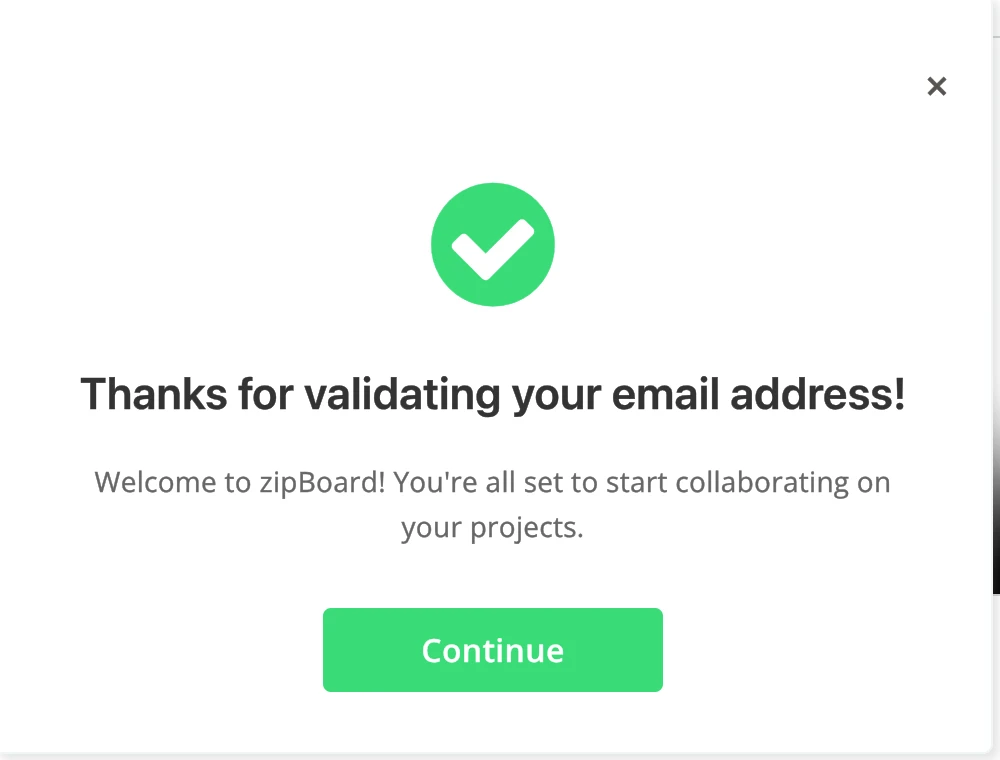
- Click the verification link. Open the email and click the Verify Email button or link. A browser tab opens confirming your email is verified.
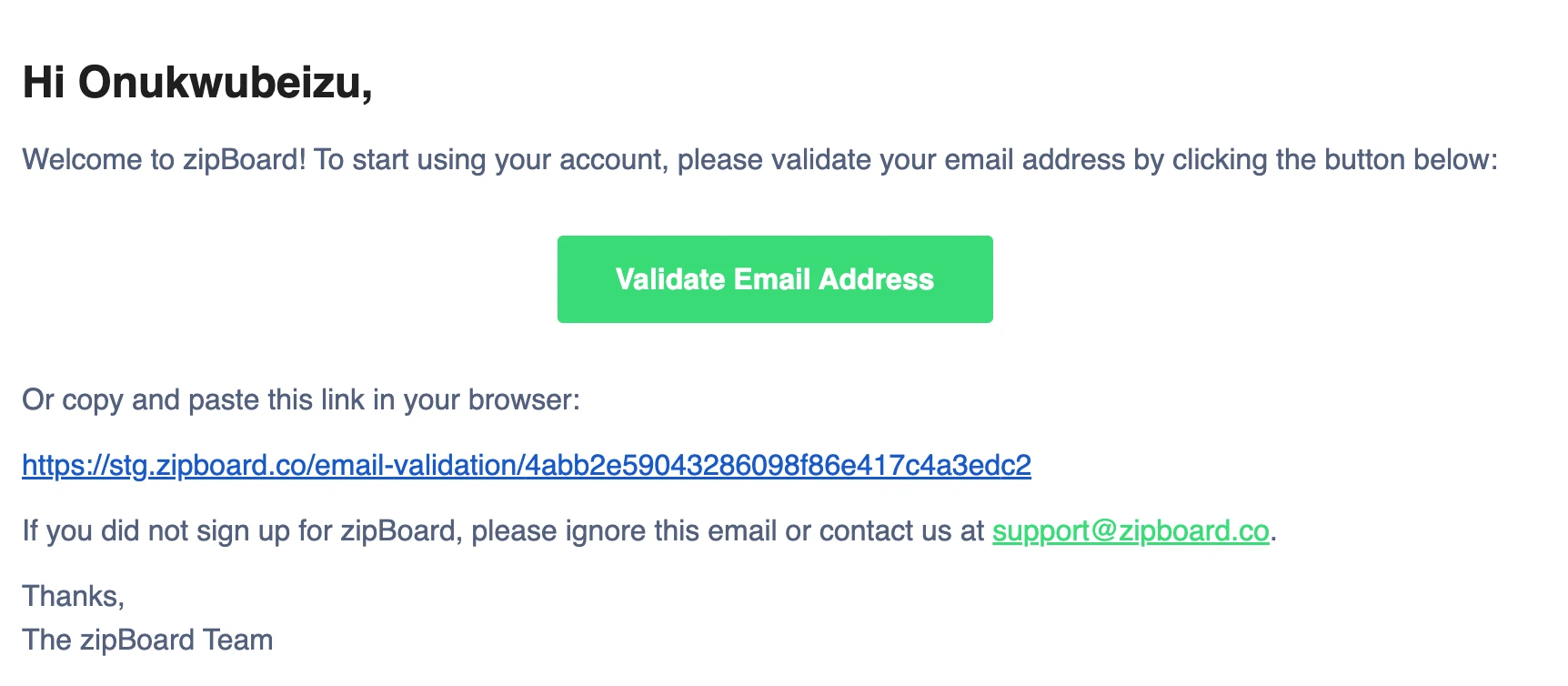
- Start using zipBoard. Once verified, you have full access to your account and can create projects, annotate files, collaborate with your team and receive all notifications.
Tip: If you don't see the email in your primary inbox, check your Spam, Junk or Promotions folder. Corporate email filters sometimes route automated emails there.
Note: To prevent mail servers from being overwhelmed, the verification button has a 30-second cooldown. If it is greyed out, wait for the countdown to reach zero and try again.
How can I use zipBoard for eLearning projects?
You can review SCORM/HTML eLearning courses with collaborators, stakeholders and clients in one place. Upload an eLearning course to your zipBoard project and follow the steps in this video (the sample course was created in Articulate Storyline):
Benefits of using zipBoard for learning design
- Centralized review: Host and manage SCORM, videos and PDFs in one place.
- Streamlined feedback: Annotate directly on content for precise, actionable reviews.
- Version control: Stakeholders always see the latest iteration of the material.
- Easy collaboration: Work with reviewers in real time, even if they're outside your team.