
How to Search and Review Files Across All Projects in zipBoard
To search and review files across all projects using the Global Asset View, use the All Assets tab to browse or search your global asset library across projects, and use the My Work tab to track your pending reviews and active assets to review. Filter your views instantly by asset type, status (Pending, In Review, Changes Requested, Approved), whether you're assigned as a reviewer, or workflow phase - to eliminate administrative bottlenecks and manage your content approval workflow across every project.
Managing a content approval process across multiple projects often means digging through scattered folders just to find what needs a decision. The Global Asset View solves this: use the All Assets tab to browse or search your global asset library across every project, and use the My Work tab to track your pending reviews and active assets, giving you one place to run your entire review workflow instead of chasing files project by project.
Filter your views instantly by asset type, status (Pending, In Review, Changes Requested, Approved), whether you're assigned as a reviewer, or workflow phase, so you can eliminate administrative bottlenecks and manage your content approval workflow across every project from a single screen.
How to Search and Review Files Across All Projects
Step 1: Navigate to All Assets Tab in your zipBoard Dashboard
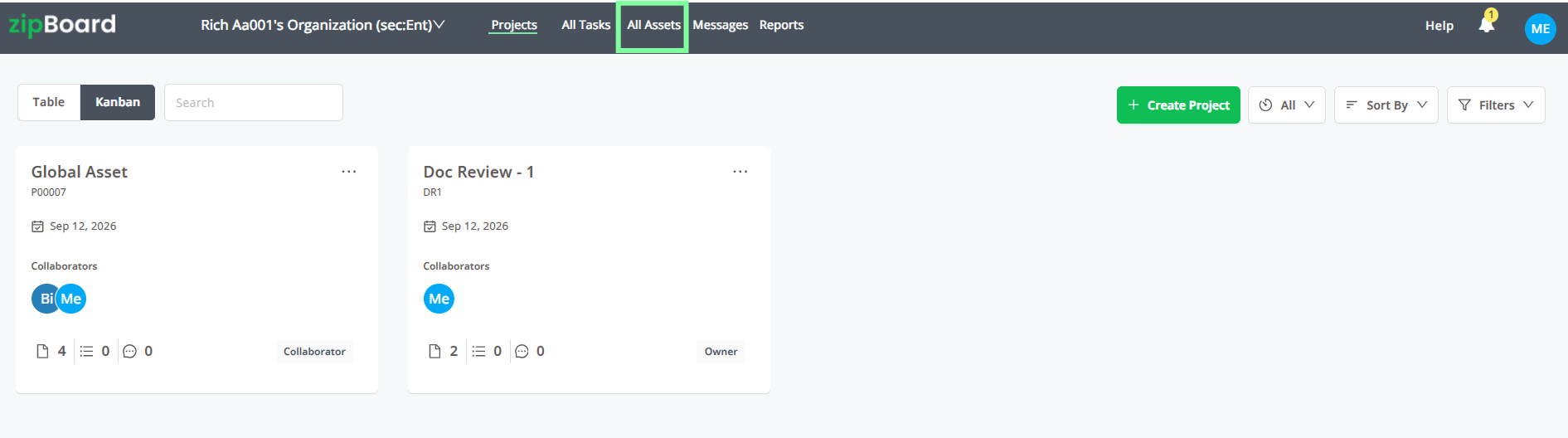
Step 2: Choose Between All Assets and My Work Tab

- All Assets Tab: Click this tab to view every file you have permission to see across all accounts and projects in either a Grid or List view. Use this to form your ultimate global asset library without digging through separate folders.
- My Work: Click this tab to open your review pipeline. My Work groups your files into five sections - Needs my review, New version since you reviewed, Changes requested by me, Reviewed, and Due soon & overdue - so you always know exactly where each item stands in the content approval workflow, and what's time-sensitive.
Step 3: Apply Sorting and Filtering Parameters
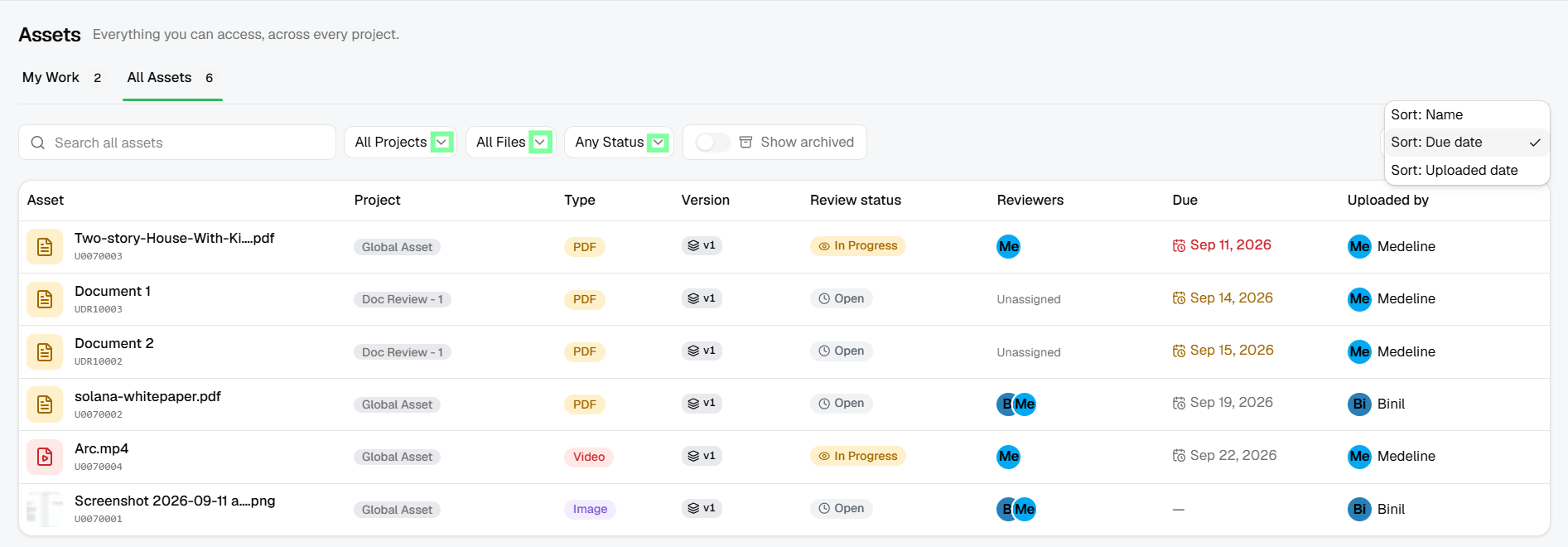
Narrow down large asset or task lists instantly using the multi-parameter filter bar — built to make your review workflow fast and precise:
- Projects: Filter files or tasks by specific project directories.
- File Status: Filter by current lifecycle states (Approved, In Progress, Rejected).
- File Types: Filter by asset formats (such as images, videos, documents, or prototypes).
- Due Date & Uploaded File: Sort items by chronological deadlines or upload metadata.
- Name: Type precise keywords to locate files by name instantly.
Step 4: Navigate to open your files

- Select open if you want to see the asset card, reviewer status, and the asset details, a full snapshot of where the item sits in the content approval cycle.
- Select Markup to start a review session for the asset and move it forward in the review workflow.
Searching for Files Inside Archived Projects
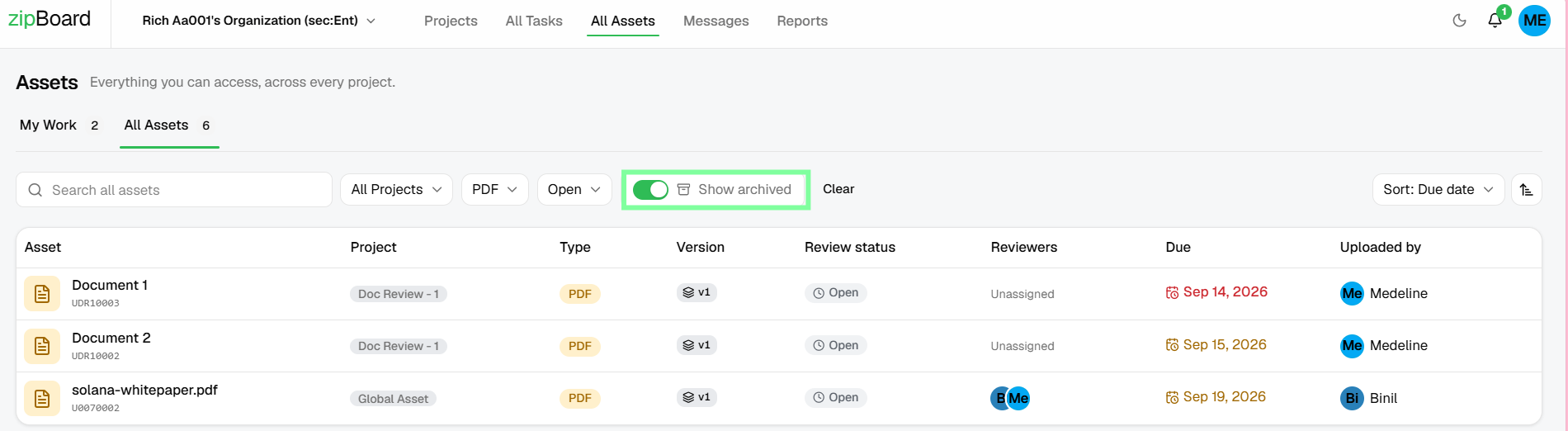
To find files inside archived projects, you can turn on the "show archived" button, and the files inside archived projects will automatically be added to your All Assets list.
Frequently Asked Questions (FAQ)
1. What is the difference between All Assets and My Work?
All Assets gives you a complete, searchable global library of every file across all your projects. My Work functions as your action-oriented review command center, organized into five sections, Needs my review, New version since you reviewed, Changes requested by me, Reviewed, and Due soon & overdue, so you never miss a deadline.
2. How do I filter files by status or project?
You can use the built-in sorting and filtering tags available at the top of both the All Assets and My Work tabs. Parameters include project names, file types, due dates, and file statuses like Changes Requested, Approved, In Review, or Pending.
3. How does the system handle security and permissions across multiple projects?
The global view utilizes inherited query-time permissions. This means you will only see assets and files from projects and accounts that you are explicitly authorized to access, ensuring strict client data isolation.
4. Why aren't my assets listed in My Work section?
You need to be assigned as a reviewer on the asset for it to appear in your My Work section.
5. How do I restore my default section order or collapse states after customizing my view?
Use the Reset layout feature, which provides a one-click way to revert your workspace back to its original default arrangement.
6. Can I change how many items are displayed on a single page?
Yes, you can adjust the Pagination settings to show 25, 50, or 100 items per page.
7. Why is the same asset appearing in multiple sections under "My Work"?
An asset can appear in more than one My Work section simultaneously, for example, it can show up in both "Needs my review" and "Due soon & overdue" at the same time.
8. Can I customize the order of sections, and will my changes save if I clear my cache?
You can use personalization to drag-and-drop sections to reorder your view. This layout preference is saved directly to your user profile and survives a cache clear.
9. How do I locate a file's location while reviewing it?
You can click the "Find this file in the project" link directly from inside any active review interface to jump straight to its location.