
What Is the Easiest Way to Mark Up and Comment on a PDF Manual?
The easiest way to mark up and comment on a PDF manual is to use a browser-based, cloud-tied collaboration platform like zipBoard, rather than a heavy desktop PDF editor. By moving your multi-page user manuals, software guides, or technical documents into a web-based markup dashboard, you eliminate the traditional barriers of document reviews. Reviewers don't need to install local software, manage license profiles, or email annotated files back and forth—they simply provide feedback directly in their web browser.
How to Eliminate File Fragmentation in PDF Reviews
When one subject matter expert (SME) writes comments on a local desktop viewer, another marks up a printed copy, and a third sends a bulleted list via Slack, the technical writer is stuck consolidating fragmented data. The goal isn't to force your entire team to buy expensive desktop licenses; it's to provide an accessible, centralized visual review layer that aggregates everyone's annotations onto the exact same file.
4 Steps to an Effortless Browser-Based PDF Markup Workflow
1. Centralize the PDF Manual as a Shared Asset
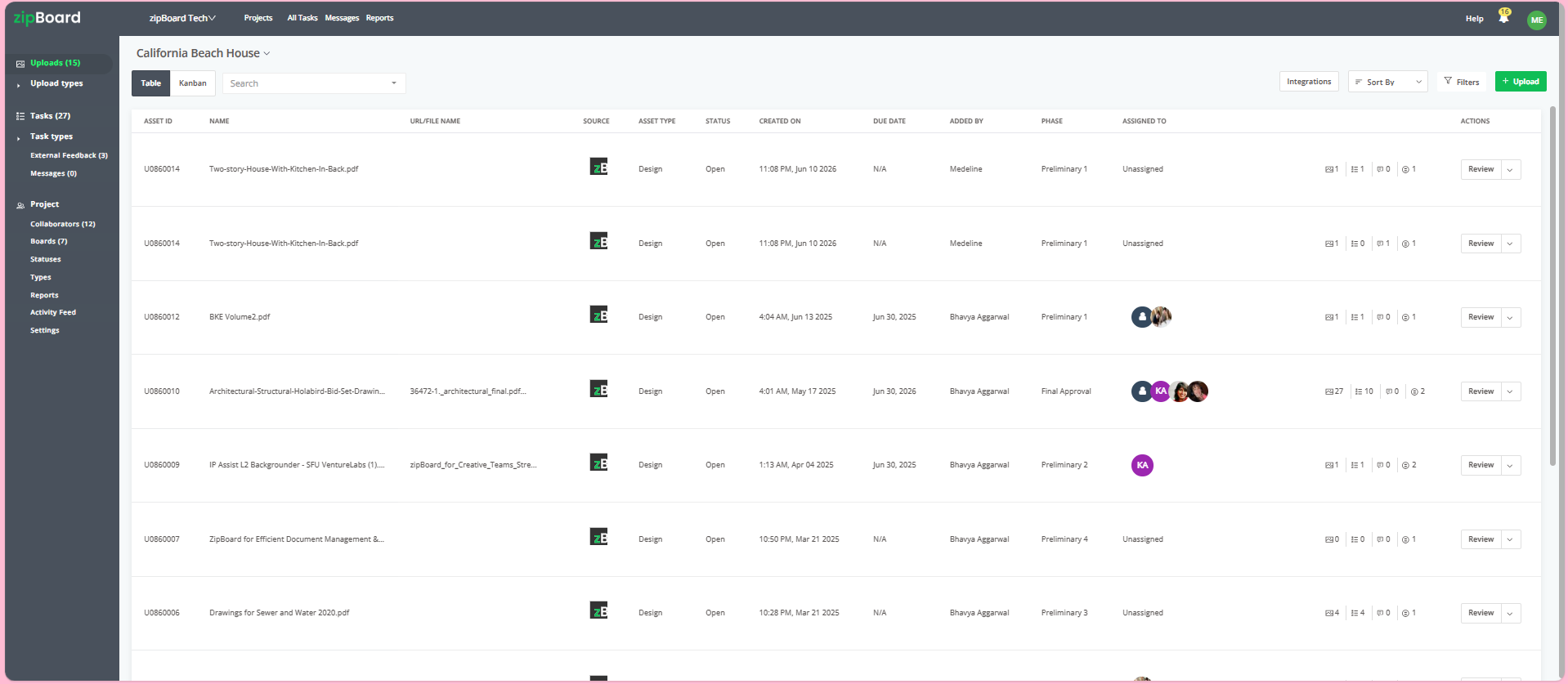
Stop emailing static PDF attachments that immediately become outdated the moment a change is made.
- The Shift: Move from isolated local file copies to a single, centralized web dashboard.
- The Action: Upload your PDF manual into your project workspace. Instead of tracking file iterations through messy naming conventions, your master document lives as a core asset where version history is stacked and tracked transparently.
2. Remove Signup Friction for Busy Reviewers
The biggest hurdle to a fast documentation review is forcing your busy engineers, product leads, or external clients to create a new software account just to circle a typo.
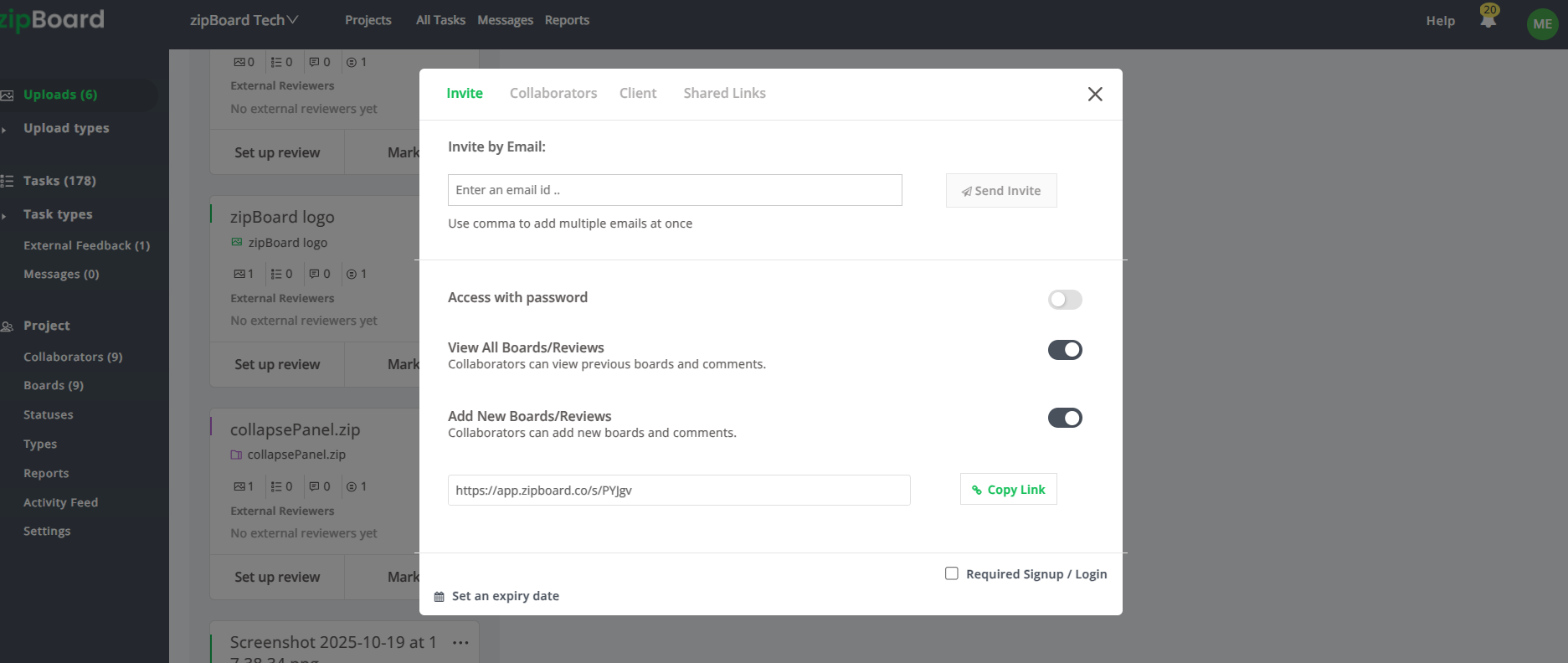
- The Shift: Treat external and internal reviewers as Guest Reviewers rather than system users.
- The Action: Generate a secure shareable link for the PDF manual. Configure the security parameters for a no-login, frictionless experience. When a reviewer clicks the link, the PDF opens instantly in their browser, allowing them to start marking up the file immediately without completing a registration form.
3. Utilize an Intuitive, Browser-Native Toolbar
Reviewers should not need formal technical training to highlight a paragraph or point out a graphic misalignment.
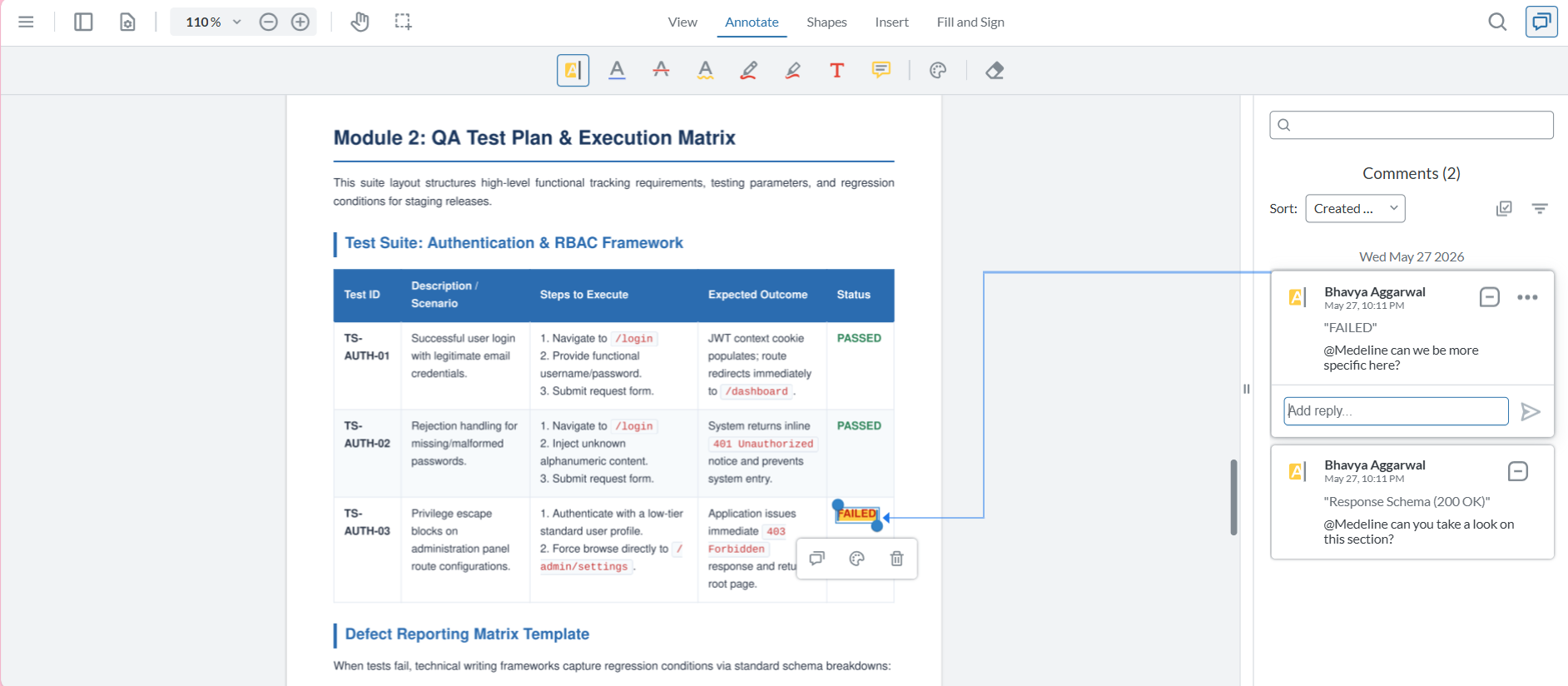
- The Shift: Replace complex desktop design menus with simple, visual canvas tools.
- The Action: The platform provides reviewers with a lightweight, browser-first toolbar featuring highlighters, pencils, rectangles, and callouts. When a reviewer adds an annotation directly on the PDF canvas, the system automatically captures a background screenshot of that exact layout context, ensuring the writing team sees exactly what the reviewer saw.
4. Consolidated Real-Time Oversight in One Window
Never guess who has finished reviewing the manual and who hasn't opened it yet.
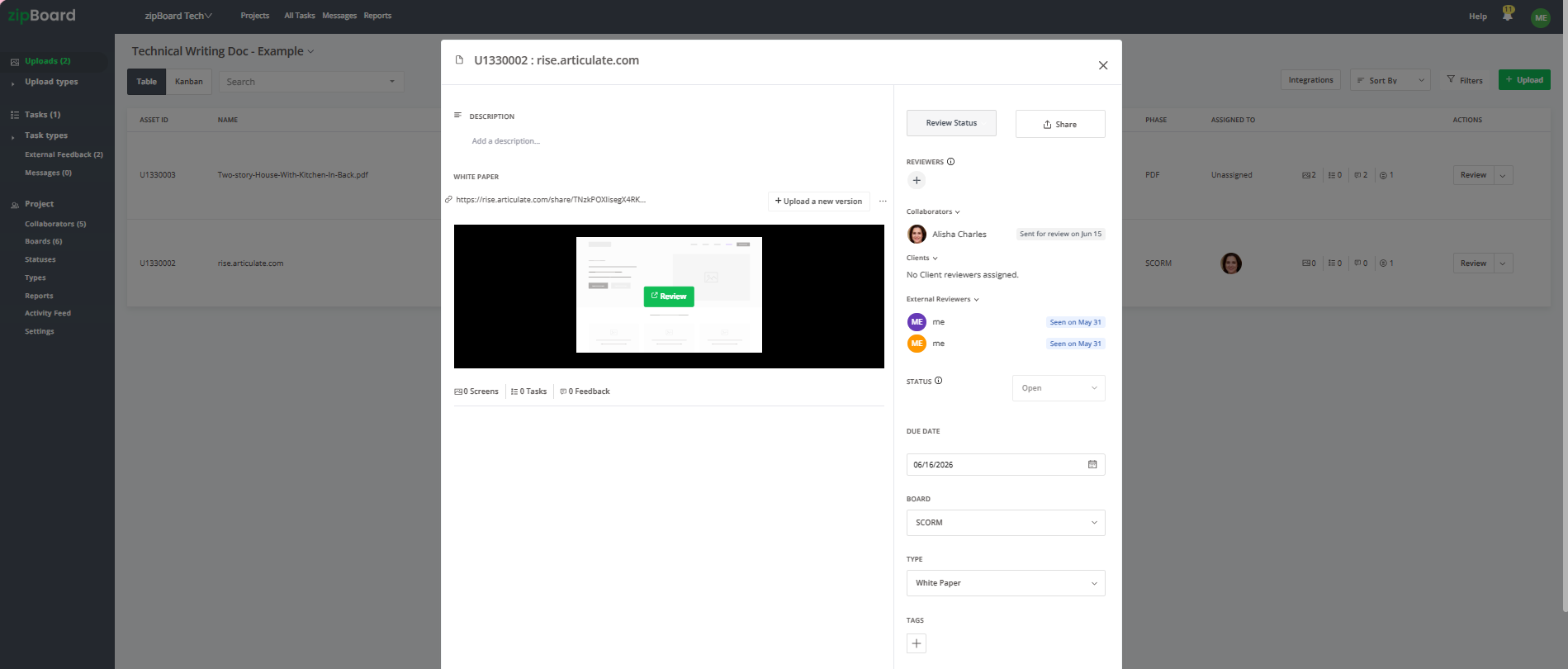
- The Shift: Transition from manual follow-up emails to live status visibility.
- The Action: You can monitor your entire reviewer roster in a single window. You can see precisely when a review invite was issued and instantly track whether collaborators have updated their review status or approved the asset, creating a clear audit trail.
Best Practices for PDF Documentation Reviews
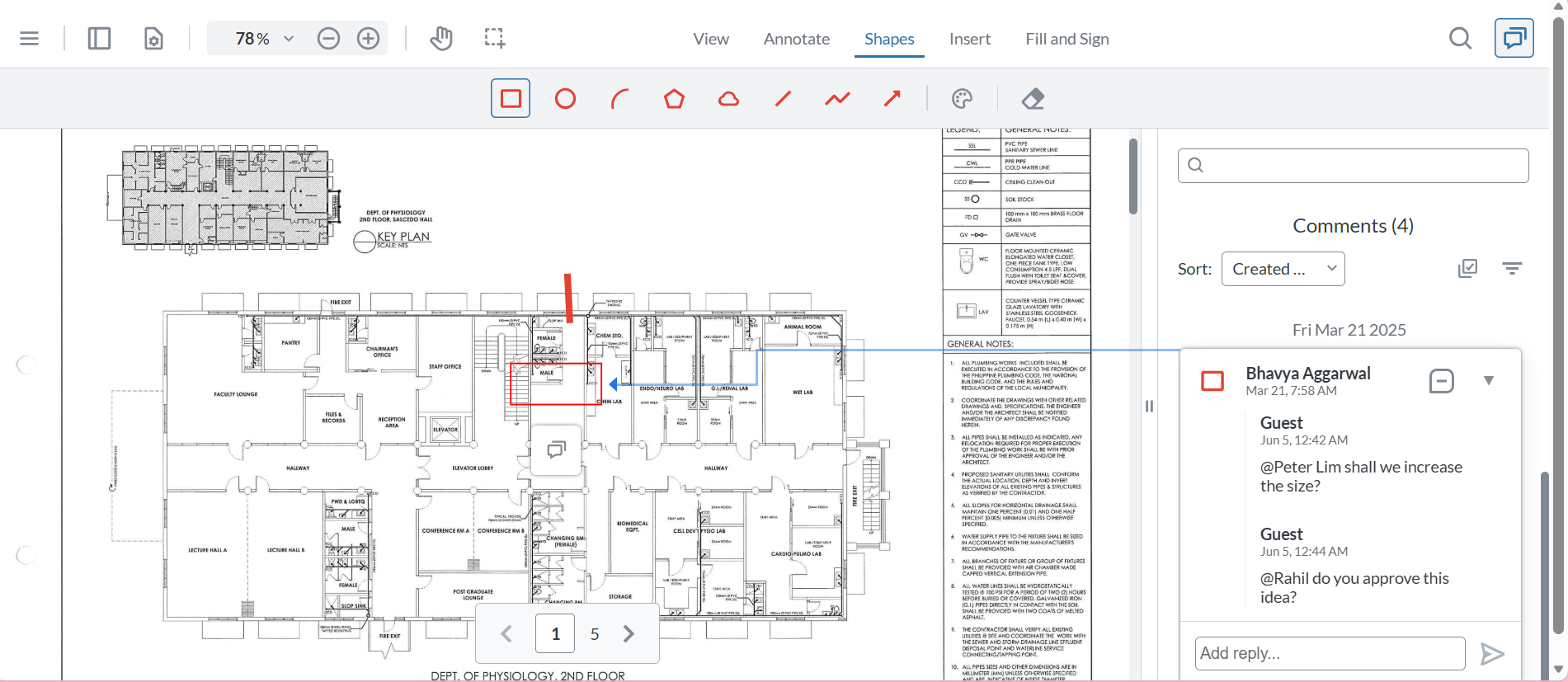
Use @Mentions to Resolve Technical Conflicts
If an engineering lead and a product manager disagree on a technical step inside the manual, don't jump on a meeting. Use the @mention feature to tag both stakeholders directly inside the specific markup's comment thread. They can hash out the technical accuracy asynchronously in one localized space.
Frequently Asked Questions (FAQ)
How is this better than using a free desktop tool like Adobe Reader?
Free desktop viewers are static and isolated. When someone marks up a PDF in a desktop application, they have to save the file, rename it, and email it back to you. If three people do this simultaneously, you end up with three conflicting files. A browser-first solution keeps everyone working on the exact same live canvas, completely eliminating version duplication.
Can we safely share unreleased product manuals using guest links?
Yes. While no-login links remove the friction of creating an account, you retain strict administrative control. You can choose to password-protect the link, set an expiration date, or revoke access entirely at any moment, ensuring your intellectual property remains secure while keeping the review process smooth.
What happens when we upload a new draft of the manual?
You simply stack the new draft directly on top of the old one using the "Upload a new version" feature. zipBoard securely archives all previous drafts, historical comments, and resolved tasks.