
How Do I Track Documentation Approvals Without Using a Massive Spreadsheet?
The easiest way to track documentation approvals without a massive spreadsheet is by moving your tracking out of static rows and into a dynamic, browser-first task management dashboard like zipBoard. For technical writers managing vast repositories of documentation, software guides, and help articles, this system bridges the gap between reviewing content and managing the technical edits generated by that review, all in one place. Instead of manually typing out cell updates and chasing subject matter experts (SMEs) for status reports, you can upload files, assign reviewers, and track approvals within a central workspace.
How to Eliminate Spreadsheet Fatigue in Documentation Lifecycles
When a spreadsheet row shows a user guide is "In Review," you still have to dig through your email, Slack, or separate PDF markups to find the actual structural and textual corrections. The goal isn’t to track data about your documentation in one place and execute revisions in another; it's to integrate your files, SME feedback, and progress statuses into a single, comprehensive workspace.
4 Steps to Spreadsheet-Free Approval Tracking
1. Centralize Document Tracking at the Asset Level
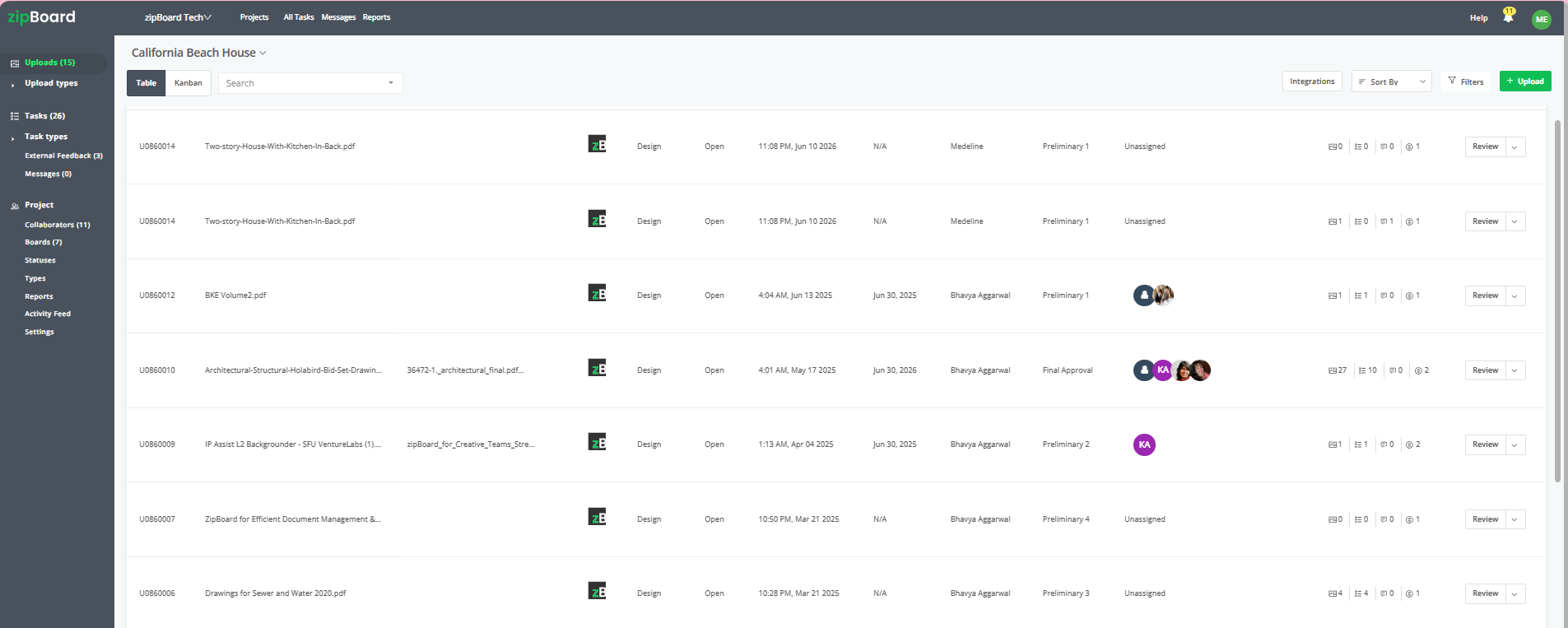
Stop creating endless rows for file names, version dates, and ownership. Let your content dashboard manage the metadata automatically.
- The Shift: Move from a manual data row to a centralized, asset-driven hub.
- The Action: Upload your manuals, API documentation, or help articles into your workspace. When you select an uploaded asset, you instantly see its entire operational profile, including who uploaded it, the assigned people, and the status.
2. Assign Documents to Multiple Subject Matter Experts (SMEs) Simultaneously
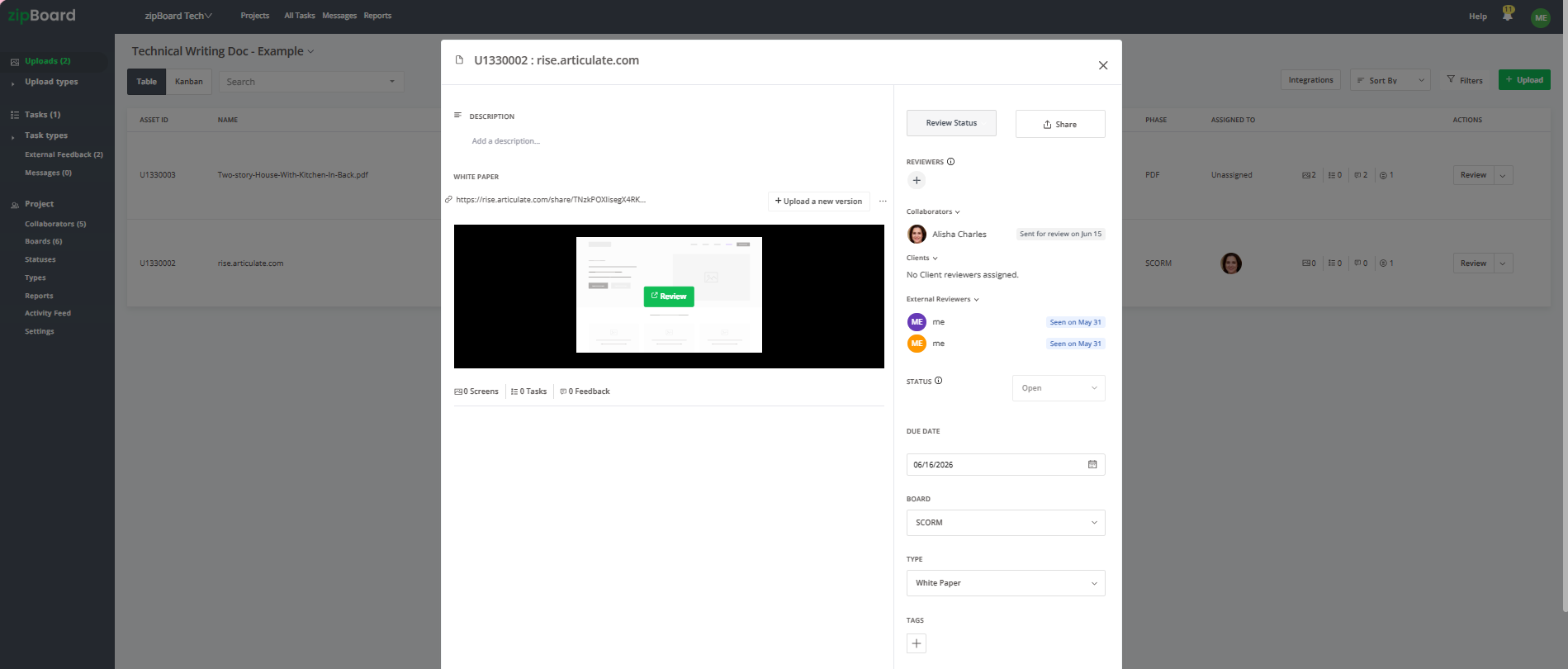
In a spreadsheet, managing conflicting or separate reviews from engineering, product, and legal teams for a single file requires complex cell formatting or separate rows that clutter your view.
- The Shift: Replace multi-column stakeholder tracking with dynamic, unified asset assignments.
- The Action: Inside the asset overview, you can coordinate global timelines by setting a unified Due Date, selecting the current documentation sprint phase, and monitoring individual progress directly on the file itself.
3. Let the Review Dashboard Capture Feedback Automatically
Never copy-paste a product manager's email feedback or an engineer's technical corrections into a spreadsheet cell again.
- The Shift: Eliminate manual data entry by letting your review environment capture the exact context.
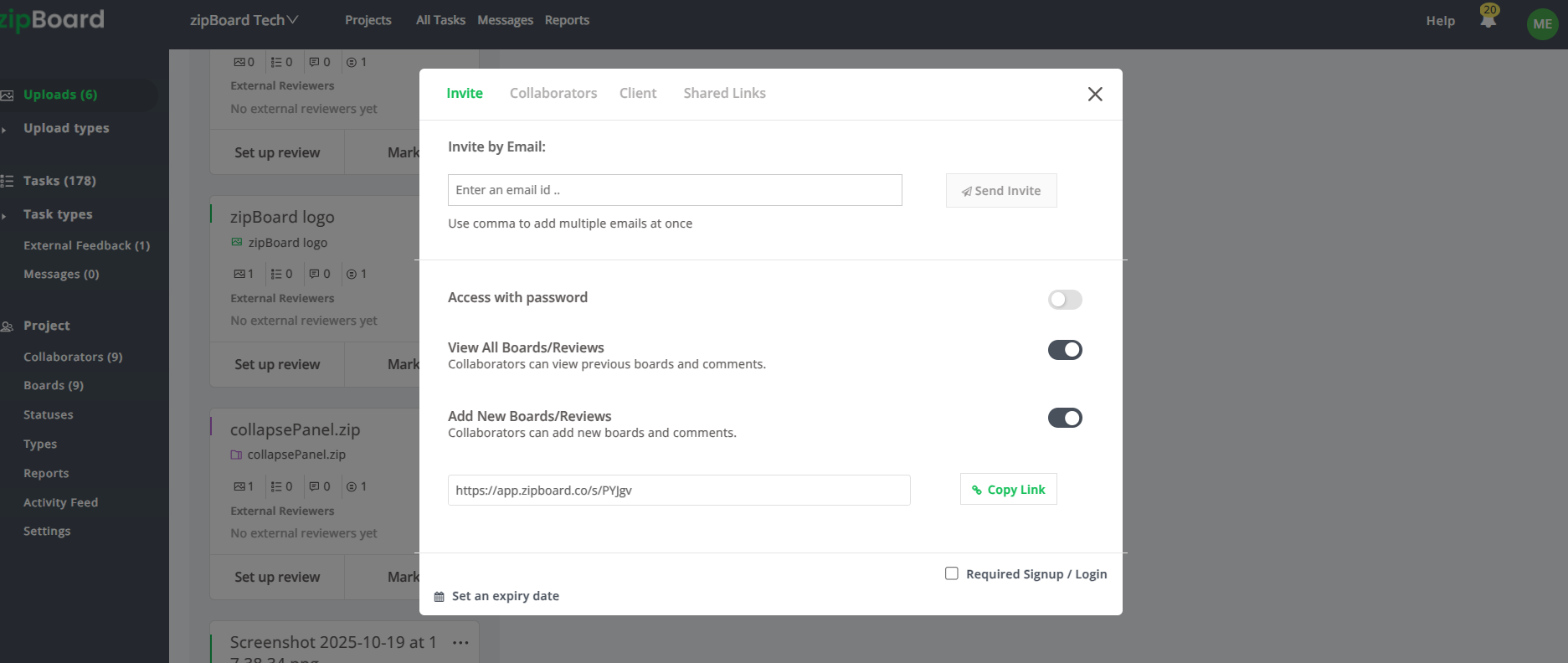
- The Action: Clicking the review button instantly launches a browser-based review dashboard in a new tab. Here, technical reviewers and SMEs use a suite of annotation and markup tools to leave feedback directly on the canvas. For external stakeholders, you can share a secure, external link with custom permissions, letting them review and update status effortlessly without needing an account.
4. Manage Issues via Dedicated Actionable Tasks
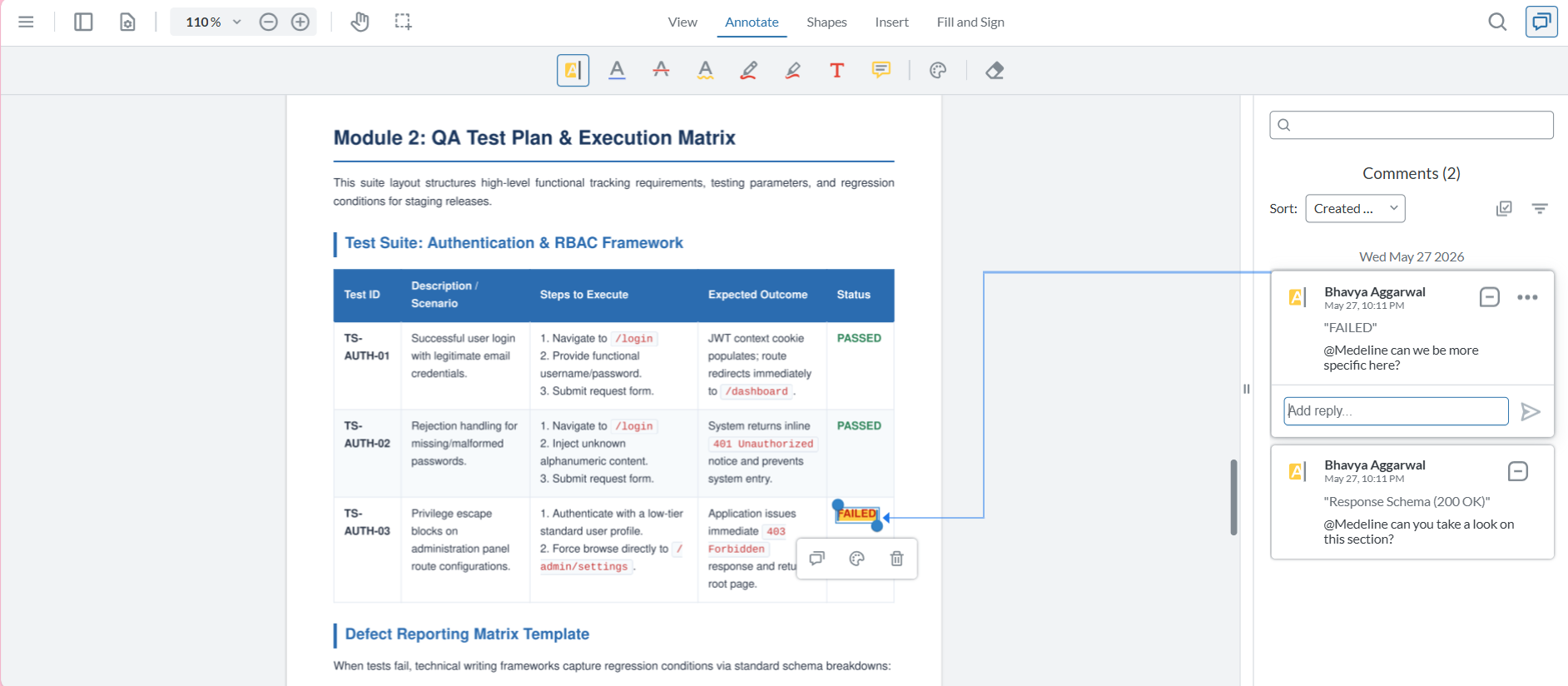
Unorganized comments on a long document turn into loose ends and missing documentation gaps. A spreadsheet cannot easily turn a piece of content feedback into an assigned item with an audit trail.
- The Shift: Transition visual markups into distinct, trackable workflow entities.
- The Action: Every structural correction, typo fix, or content gap becomes a structured task. Click on any task to view a captured screenshot of the exact text issue, reply directly to threads using @mentions to update team members, and assign the task to a specific writer responsible for the revision. You can adjust the task's status, priority tier, and target completion date.
Best Practices for Technical Writing Teams
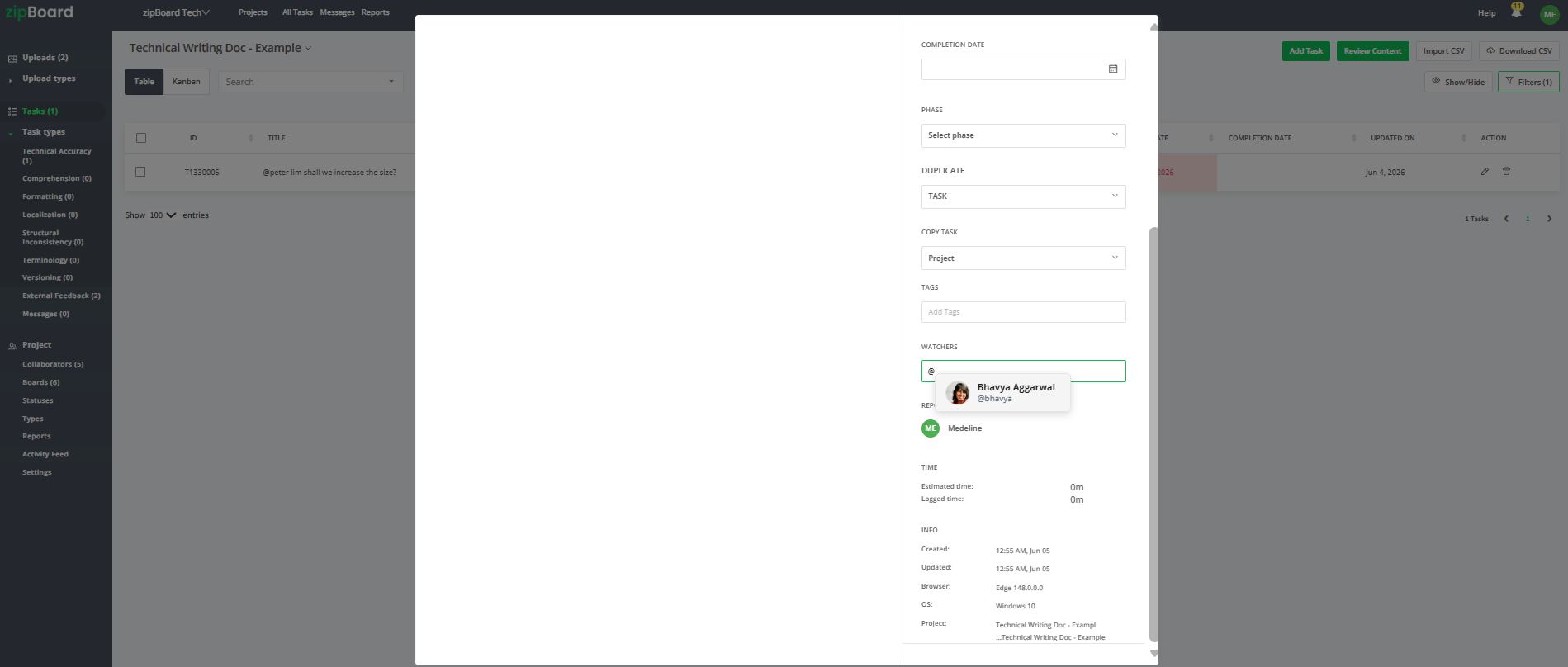
Utilize Task Watchers
If you have lead technical editors or product managers who need to oversee the approval of a critical manual without being directly assigned to rewrite the content, add them as Watchers to the task. Watchers are automatically notified of every internal reply, description update, or status change, keeping editorial leadership informed without manual email updates
Frequently Asked Questions (FAQ)
How is assigning an Asset different from assigning a Task?
Assets are the core documentation deliverables being reviewed, such as a user manual or a help article, and can be assigned to multiple stakeholders at once so engineers and product managers can execute concurrent reviews. Tasks are the individual actionable items, content gaps, or corrections generated from those files, and they are assigned to a single technical writer at a time to ensure clear ownership and resolution accountability.
Can external SMEs review files without making it messy?
Yes. Using the external sharing feature, you can generate secure review links for contract writers or external consultants outside your core team. You retain full control over their roles and permissions, and their visual markup feedback flows cleanly back into your asset dashboard as structured task items without disrupting your internal workspace organization.
What happens to historical feedback when a document version is updated?
You never lose your historical context. You can click "Upload a new version" directly within the asset panel to stack documentation revisions. The platform preserves all previous drafts, comments, and resolved task histories, allowing you to cycle through versions and verify that technical updates were executed correctly without flipping through archived spreadsheet tabs.