
Creating Tasks from PDF Annotations
In the zipBoard PDF viewer, most markup, shape, line, and free-hand annotations automatically create a task the moment you place them, so you can turn feedback into assigned, trackable work in one step. Text, insert, and Fill & Sign tools are visual-only and do not create tasks.
Important: This article applies only to PDF document reviews. Annotation behavior and task creation rules differ for other asset types such as websites, images, videos, or SCORM content.
What are annotations and tasks in a PDF review?
Before diving deeper into PDF annotations, it helps to understand a few key terms:
- What is an Annotation? An annotation is a visual mark, comment, or highlight placed directly onto a document. Think of it as a "digital sticky note" used to point out specific areas that need attention.
- What is a Task? A task is an actionable work item. Unlike a simple comment, a task can be assigned to a team member, given a deadline, tracked through a status (such as "Open" or "Resolved"), and organized in your project's Kanban board or list.
- What is a PDF Annotation? Specifically for PDF files, annotations let you interact with the static layers of the document: marking up text, circling layout issues, or pointing to specific images within the PDF.
In zipBoard, certain PDF annotations automatically trigger a task. Specific annotation tools do more than mark up a document: they generate a task, so you can mark a mistake and turn it into a work item for your team in one motion, without extra steps.
Which PDF annotations create tasks?
Use the table below to see which tools trigger task creation and which are for visual reference only.
| Category | Tool | Creates a task? |
|---|---|---|
| Markups | Highlight, Underline, Strikeout, Squiggly, Note | Yes |
| Shapes | Rectangle, Ellipse, Arc, Polygon, Cloud | Yes |
| Lines | Line, Polyline, Arrow | Yes |
| Free Hand | Free Hand, Free Hand Highlight | Yes |
| Text | Free Text | No |
| Inserts | Signature, Rubber Stamp, Image | No |
| Fill & Sign | Checkmarks, Dots, Crosses, Signatures | No |
How do I create a task from an annotation in a PDF?
In the zipBoard shared space, many annotation tools automatically generate a task, so feedback becomes an actionable item instantly.
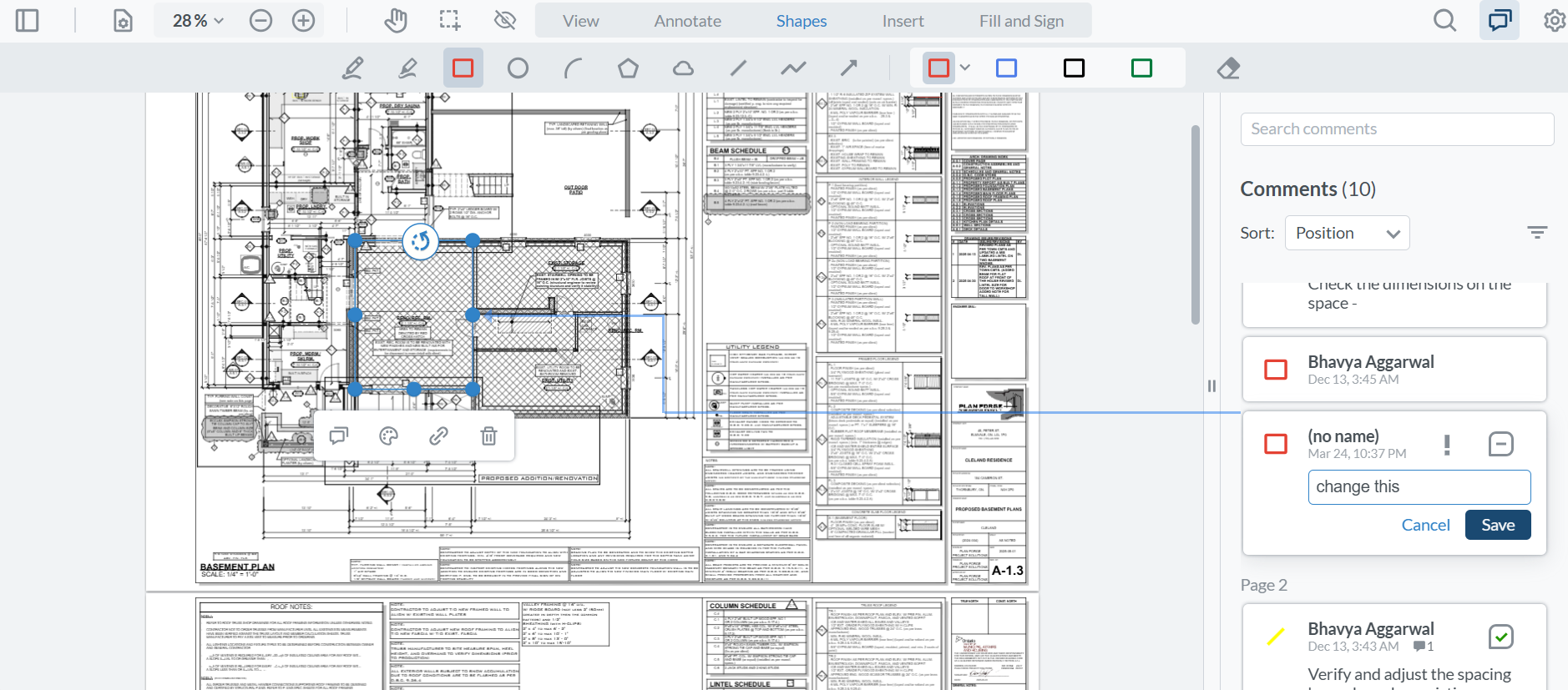
- Select an annotation tool: Choose any tool marked Yes in the table above (for example, Arrow or Highlight) from the annotate and shapes toolbar.
- Mark the document: Apply the annotation to the specific area of the PDF you want to discuss.
- Fill in the task: As soon as the annotation is placed, a task panel opens where you can:
- Assign an owner
- Set priority
- Add context or instructions
No extra clicks and no manual task creation.

Can I add a text annotation in a PDF and make it a task?
The Free Text tool is a visual-only annotation: it does not create a task. Use it when you want to leave a permanent label on the page without adding to your task list.
If the feedback needs to be tracked as work, use a task-creating tool instead, such as Note, Highlight, Arrow, or Rectangle. A task panel opens as soon as you place the annotation.
When should I use visual-only annotations?

Some feedback doesn't need to be tracked as work. Use these tips to choose the right tool:
- Visual-only feedback: Use Free Text or Stamps to leave a permanent label on the page without cluttering your task list.
- Precision: Use the Arrow or Rectangle tools for specific UI or layout feedback so the task is clearly linked to the correct PDF element.
- Form filling: Fill & Sign tools (like Checkmarks and Dots) are intended for document completion and do not create tracked tasks.
Where can I find task creation rules for other content types?
More guides on PDF documents:
- How to Review and Get Feedback on PDF Documents
- PDF Annotation Tools Overview
- How to Add / Upload PDF File
Annotation behavior varies by asset type. For websites, images, video, or learning content, see:
- How do I share my website, PDF file, HTML / SCORM file, images or video for commenting?
- How can I use zipBoard for eLearning projects?
- How to Use zipBoard's Review Tools to Annotate and Comment on Digital Content?
- How to Upload and Review Image Files with zipBoard?
- How to Upload and Review Videos