
How do I Integrate zipBoard with TestMu AI?
Integrate TestMu AI with zipBoard to report bugs directly from TestMu AI to your zipBoard instance in a single click. You set it up by generating an API key in zipBoard and pasting it into the zipBoard integration in TestMu AI.
Why do I need to integrate zipBoard with TestMu AI?
zipBoard is an online collaboration, visual feedback, and issue tracking tool. TestMu AI is a cloud-based cross-browser testing platform that helps enterprises run web automation tests at scale through parallel testing. Integrating the two gives you the best of both worlds.
zipBoard offers a cloud review platform to help you collaborate with your team on a web project. You can attach an image, add suggestions, tag your collaborators, and more, with full transparency. Your colleagues can view every reported bug or suggestion on the project and see who is doing what.
TestMu AI is a cloud cross-browser testing tool that offers 2000+ real browsers and browser versions. You can perform both manual and automated cross-browser testing with an online Selenium Grid. The TestMu AI integration with zipBoard lets you report bugs directly from TestMu AI to your zipBoard instance in a single click.
Step 1: Find zipBoard in TestMu AI
- Log in to your TestMu AI account. You need Admin or User level access to see and install integrations.
- Select Integration from the left navigation menu bar. This opens a list of third-party applications available to integrate with your TestMu AI account.
- Under the Bug Tracker category, click the zipBoard block.
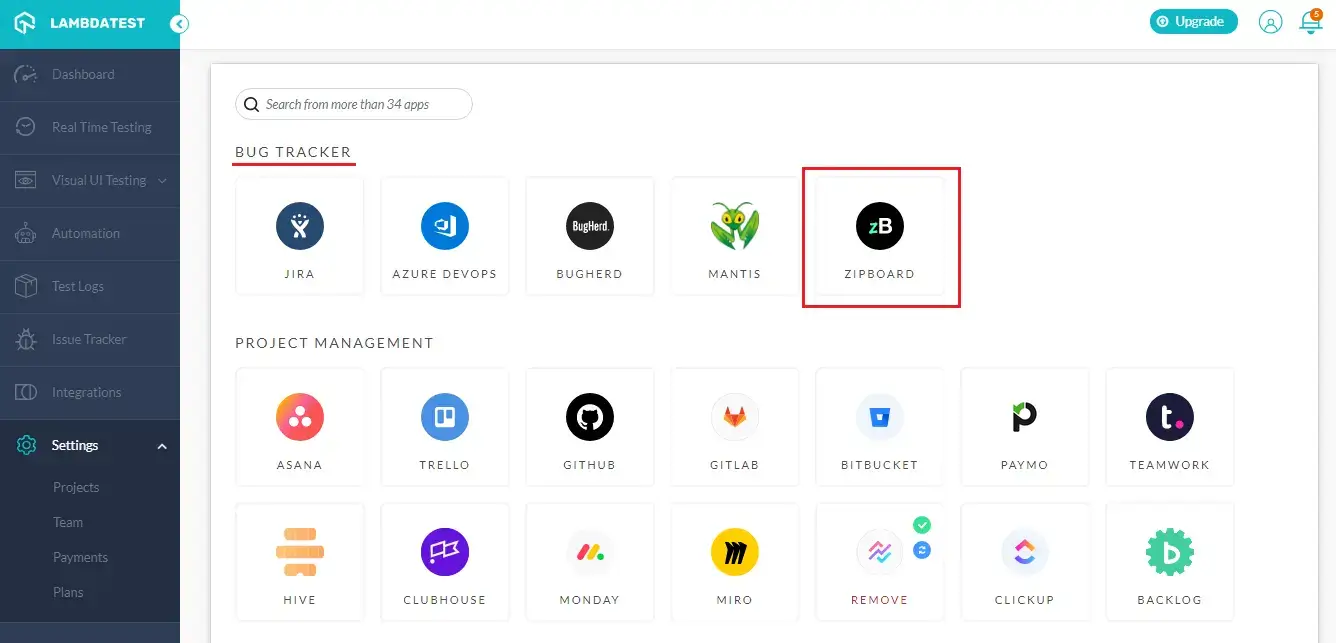
- You are taken to a screen where you need to enter your API key.
Step 2: Find your API key in zipBoard
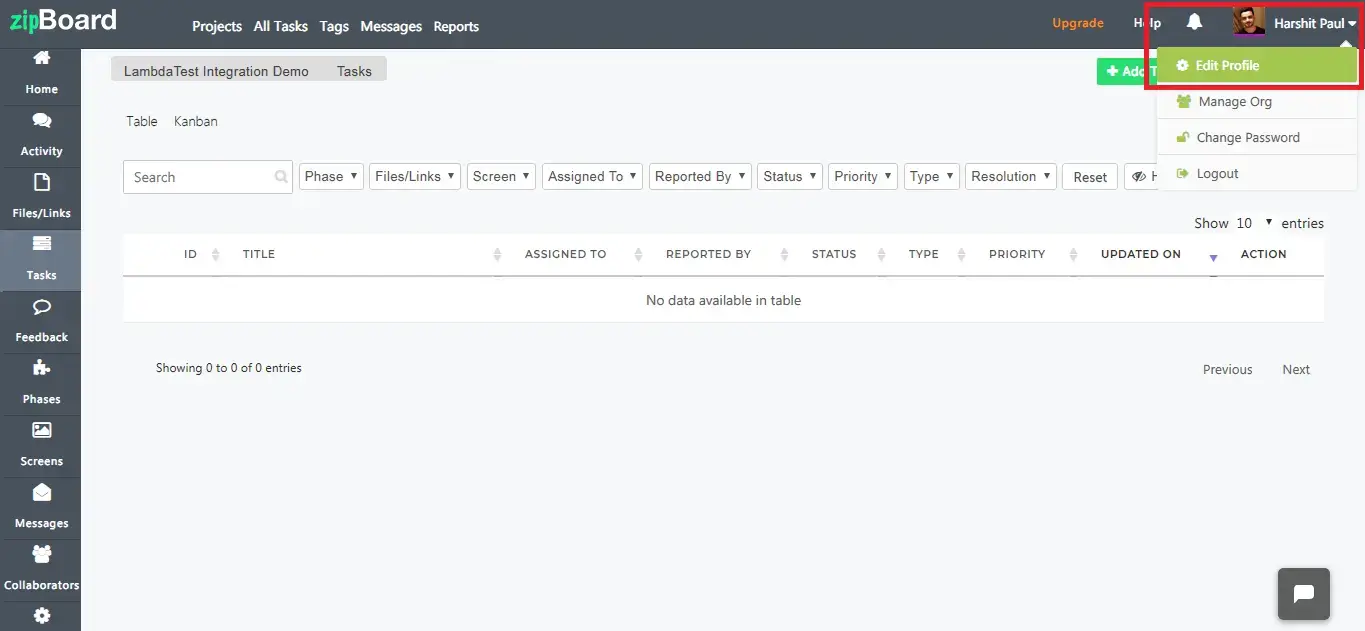
- In your zipBoard account, open the drop-down menu in the top-right corner of the screen and click edit profile.
- Click the + icon to generate your first API key if you don't have one already.
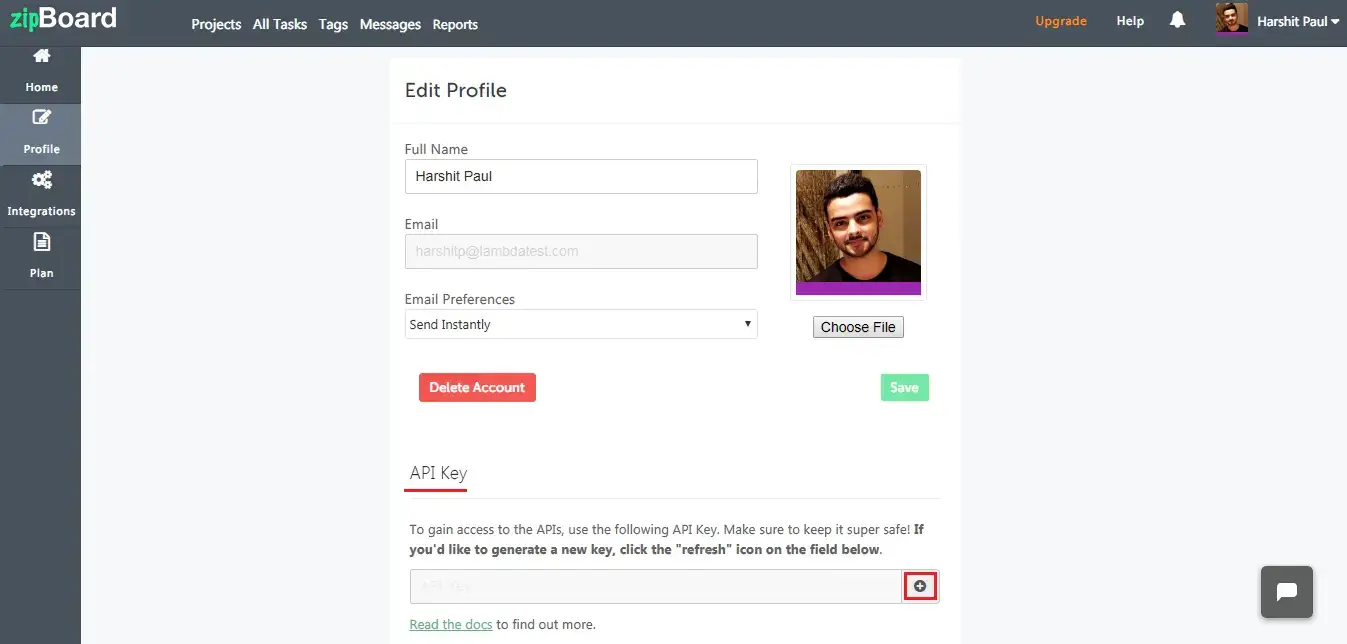
- A prompt asks you to create a new API key. Click Yes.
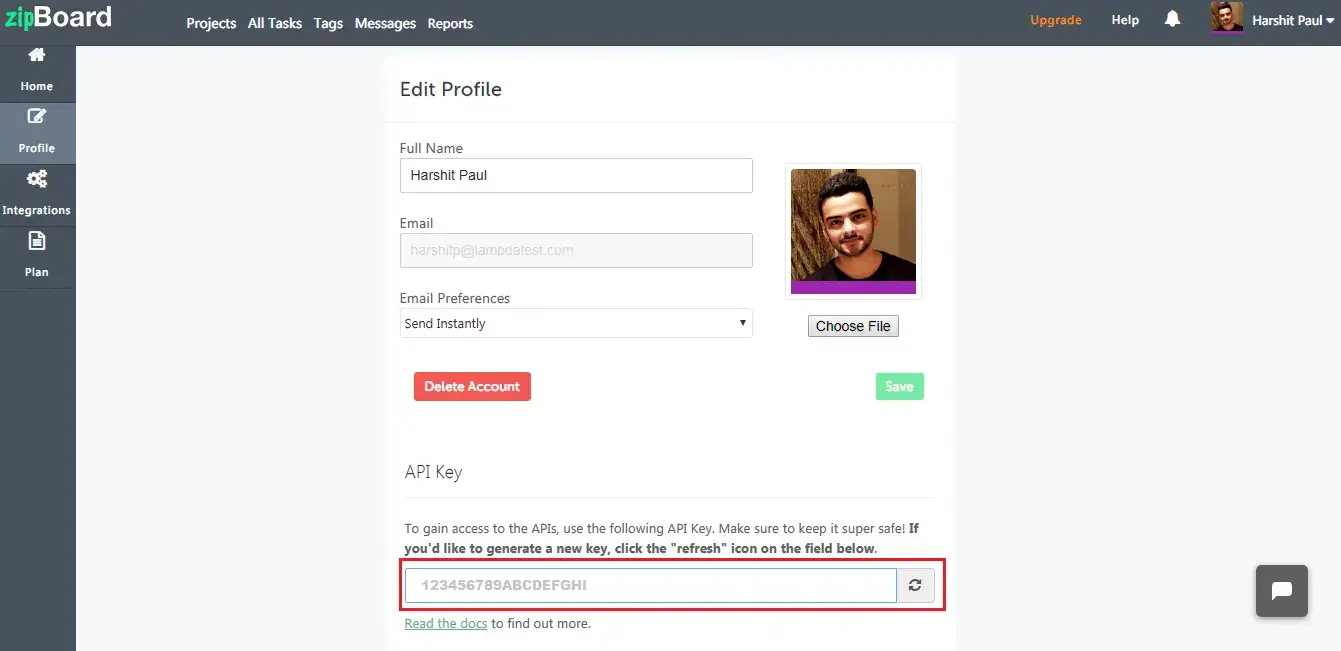
Note: This API key is used to authenticate your zipBoard account with third-party applications. Don't share it with anyone. If you think the API key has been misplaced, you can regenerate a new one in zipBoard by clicking the refresh icon under your profile settings.
Step 3: Insert the API key in TestMu AI
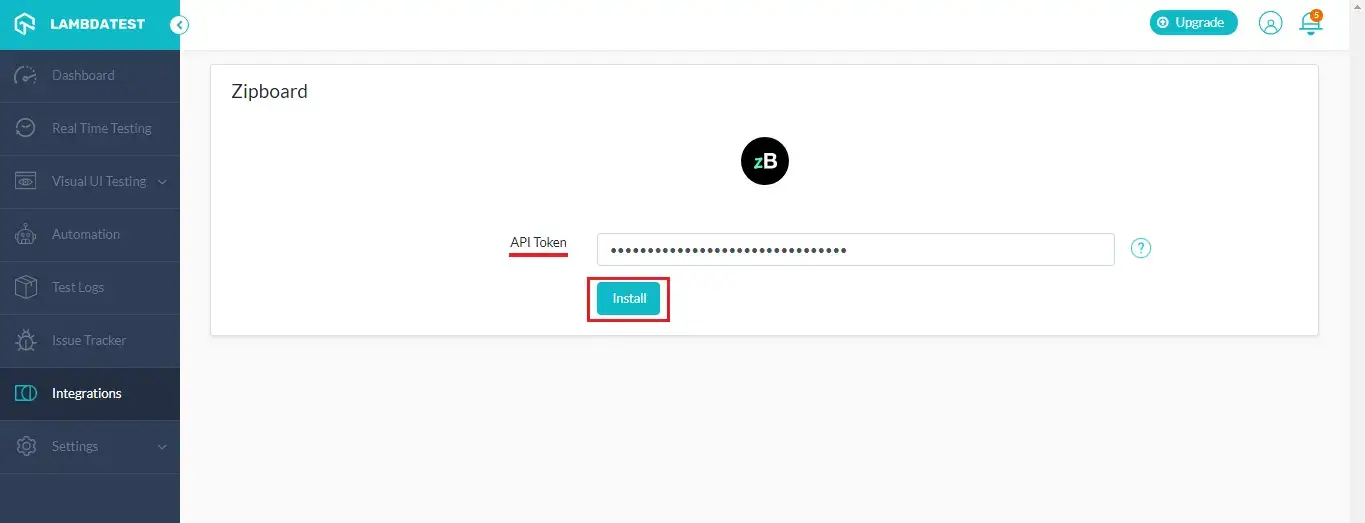
- Copy the API key, paste it into the zipBoard integration in TestMu AI, and click Install.
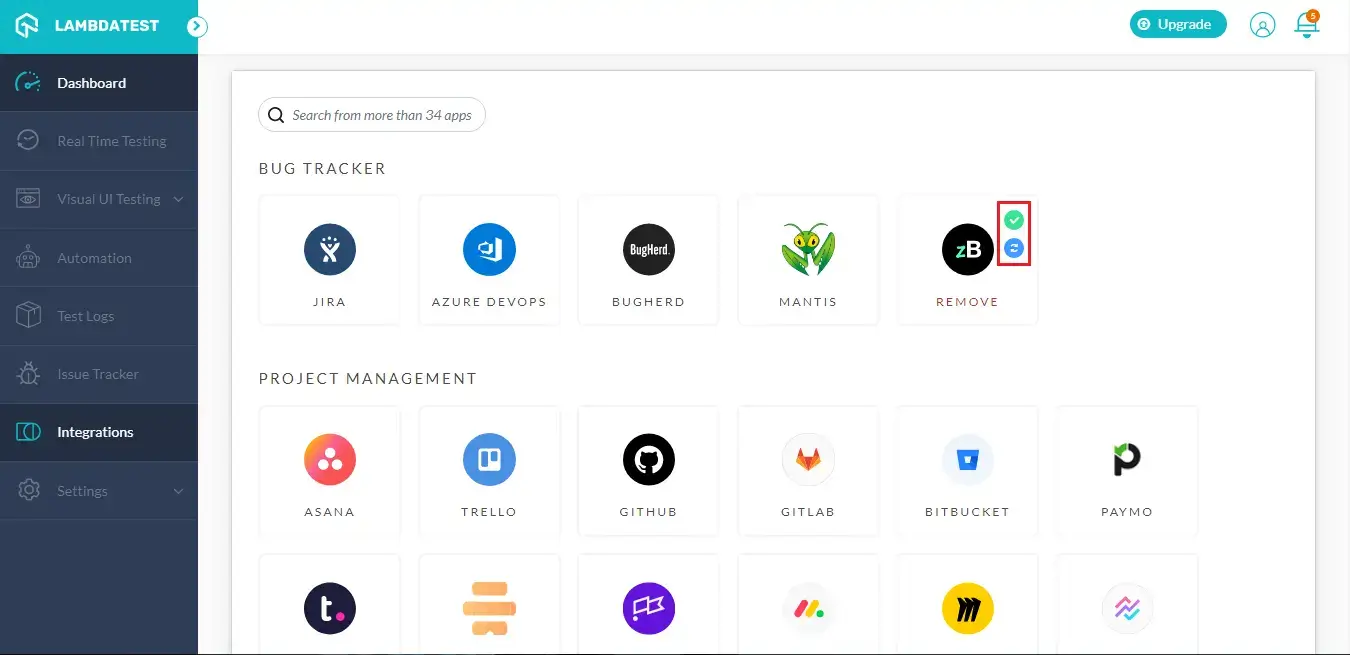
- zipBoard is now integrated with TestMu AI. On the integrations tab, a green tick over the zipBoard block shows that the integration is successful.
How do I remove the TestMu AI integration from zipBoard?
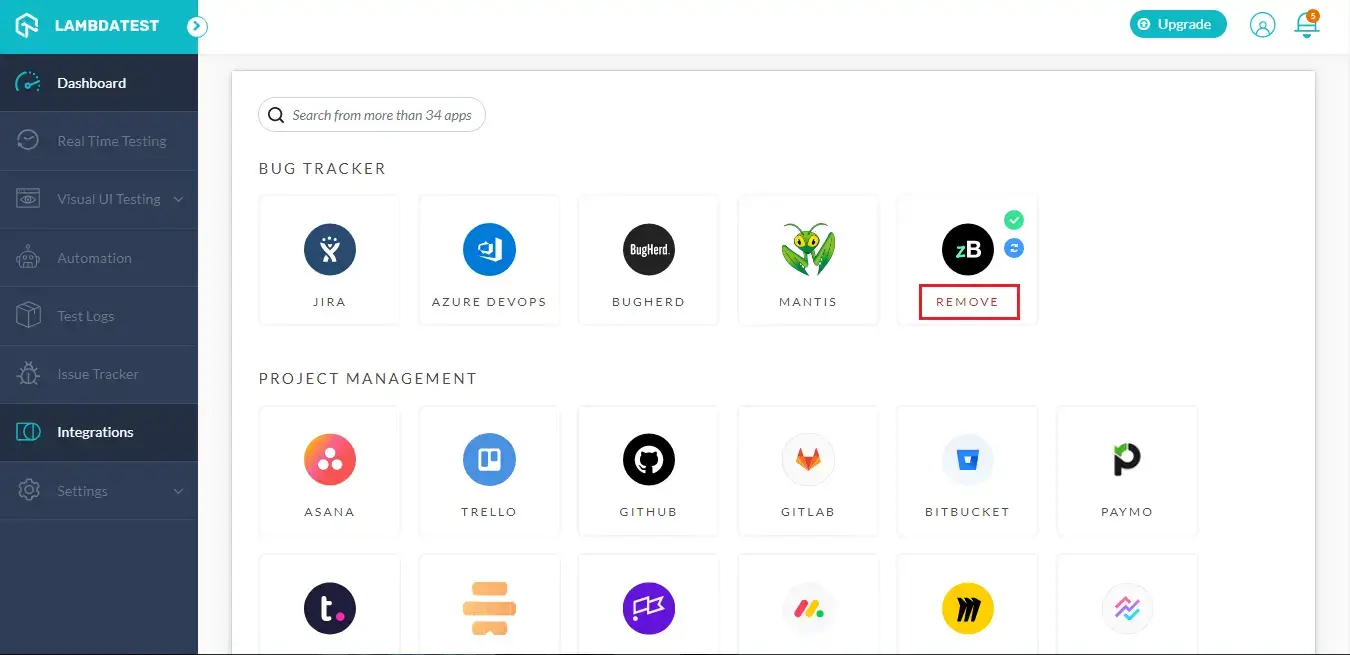
You remove the integration from TestMu AI, not from zipBoard. Open the Integrations tab in TestMu AI and use the Remove option under the zipBoard block.
- Log in to your TestMu AI account and open the Integrations tab.
- Find the zipBoard block.
- Select the option to Remove the integration.
If you have more questions about the zipBoard integration with TestMu AI, email support@zipboard.co.