
How Do I Automate Drawing Approval Reminders?
The easiest way to automate drawing approval reminders is by setting up automated workflow notifications within a centralized, browser-based collaboration platform like zipBoard. By moving your shop drawings and design files out of fragmented email threads and into a cloud-based dashboard, you can trigger automatic alerts based on deadlines and task statuses. This ensures that architects, engineers, and clients are gently prodded to complete their reviews without project managers having to manually send "checking in emails every morning.
How to Eliminate the Review Bottleneck in Construction Projects
In the Architecture, Engineering, and Construction (AEC) industry, waiting on drawing approvals is a notorious bottleneck. When a project manager has to track down an external consultant or client for a signature on a submittal, production grinds to a halt. The solution isn’t to hound your team with manual phone calls; it’s to build an automated reminder system that helps you track deadlines and follows up with stakeholders automatically.
4 Steps to an Automated Approval Workflow
1. Centralize Drawings and Set Hard Deadlines
Automated reminders are only as good as the data driving them. Stop sending static PDFs via email where deadlines get buried.
- The Shift: Establish a single source of truth for all drawing submittals in a web-based dashboard.
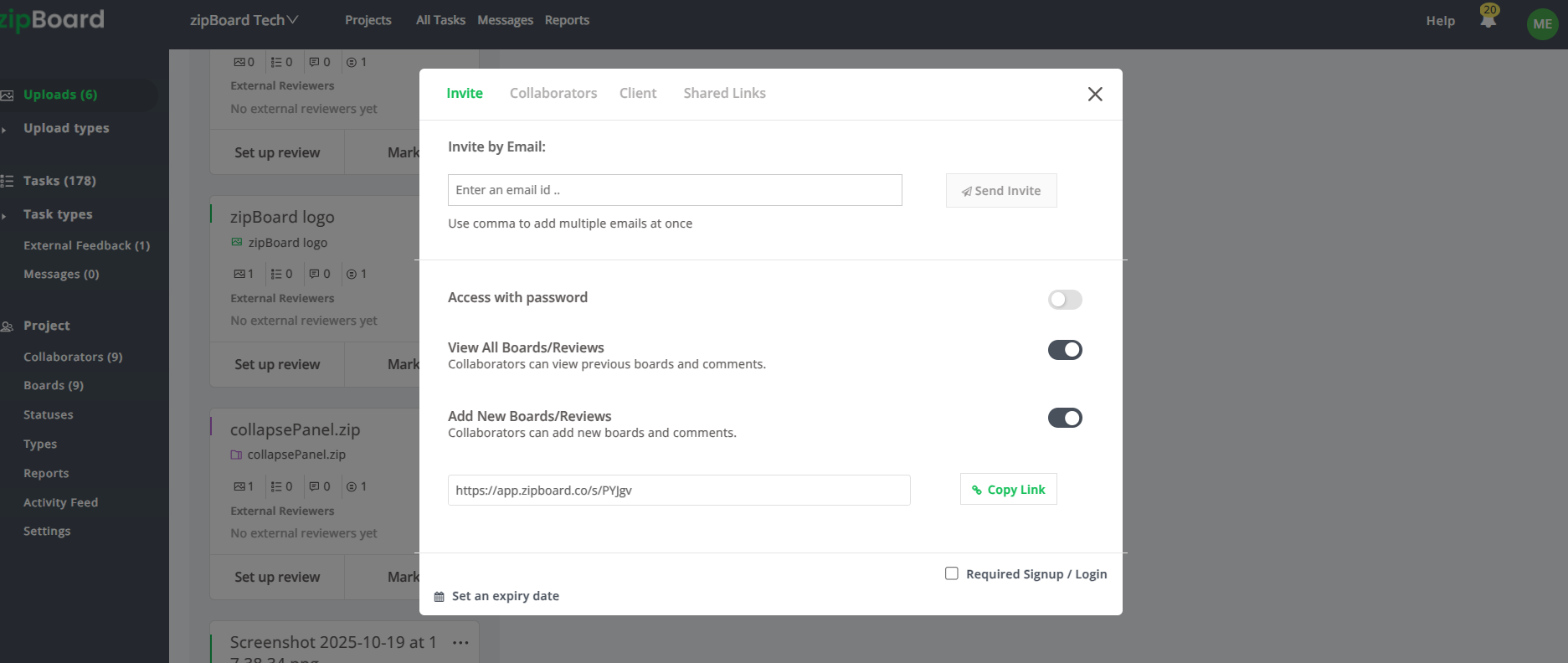
- The Action: Upload your construction drawings into your project space. When assigning a drawing to a reviewer, explicitly set an Expiry Date within the system. This date acts as the foundational trigger for your automated notification schedule.
2. Leverage No-Login Links to Remove Review Friction
Reminders won't work if the recipient is blocked by a login screen. If an external stakeholder has to reset a password just to view a drawing, they will ignore the notification.
- The Shift: Eliminate login friction by treating external partners as Guest Reviewers.
- The Action: Generate a secure shareable link for the drawing. Configure the security settings to allow a "no-login, frictionless experience". When the automated reminder hits their inbox, the recipient can click the link and immediately jump into the file directly from their browser.

3. Centralize Review Status Tracking in a Single Window
Managing multiple reviewers shouldn't mean chasing people down across different channels or cross-referencing your sent emails to see who actually opened the file.
- The Shift: Move away from guessing the status of your review team and consolidate your oversight.
- The Action: With zipBoard, you can add reviewers directly onto the specific document canvas. When you add a teammate or an external partner, the platform dispatches a formal review invitation automatically. In that single, unified sidebar interface, you can instantly track progress in real time—seeing exactly who received the invitation, when it was sent, and whether they have updated their review status or marked the asset as approved. This gives project managers a completely transparent audit trail at a single glance.

4. Configure Status-Based and Deadline Alerts
Let the platform do the chasing for you by establishing rule-based notification settings.
- The Shift: Replace manual follow-ups with automated, contextual alerts.
- The Action: Once added as a collaborator on a project, you automatically receive instant updates for any activity within that workspace. Whether a teammate uploads a new drawing revision, updates a task status, or leaves a markup, the system keeps you informed in real time.
Best Practices for Construction Teams
Use @Mentions for Urgent Feedback
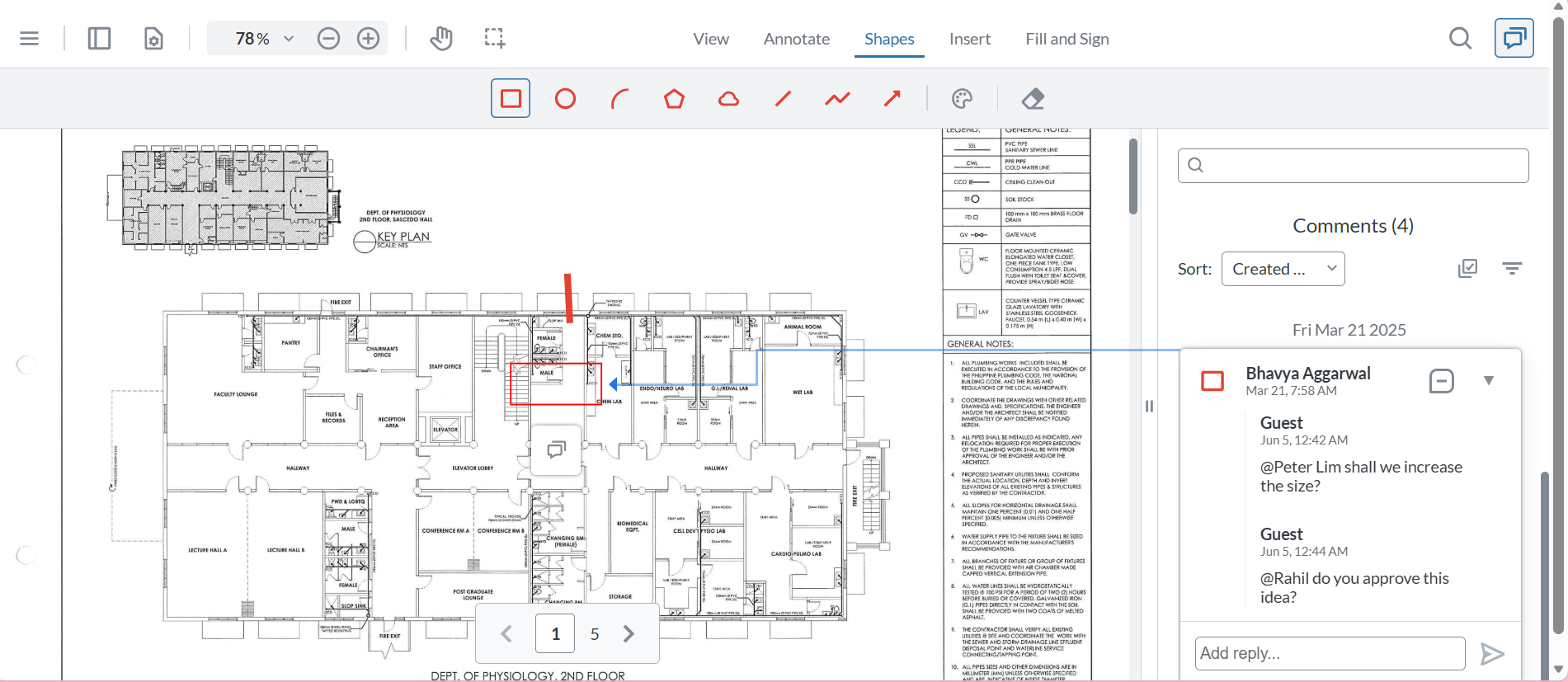
Need to grab someone's attention immediately? Use the @mention feature to tag a specific collaborator directly inside a drawing comment or task item. This triggers an instant, direct notification, ensuring critical technical feedback or urgent design questions are seen right away without cluttering everyone else's feed.

Check Your Activity Feed Regularly for At-a-Glance Updates
When you are managing multiple fast-moving projects, you shouldn't have to jump between different drawings or open dozens of separate files just to figure out what changed while you were away.
Make it a habit to check your activity feed at the start of your workday. This dashboard aggregates every modification, comment, and status change across all your assigned assets into a single, chronological timeline. With one quick scroll, you can see exactly which files were updated, who left feedback, and what tasks were completed, allowing you to catch up on global project progress in seconds.
Frequently Asked Questions (FAQ)
What if my clients ignore the automated email reminders?
The best way to combat email fatigue is to make the action item incredibly simple. Because the platform utilizes browser-first, no-install access, the reminder email contains a direct link. The client clicks it, the drawing opens instantly, and they can leave feedback using a simple markup toolbar without creating an account. Reducing the effort required to do the task drastically increases response rates.
Can I track who has received and viewed an approval request?
Yes. zipBoard maintains a complete audit trail of exactly when a review invite was sent to each collaborator or client.
How do I prevent automated alerts from confusing external vendors?
You can control this by using strict role-based access ensures that a Guest Reviewer only receives updates for the specific files they are assigned to, keeping their focus entirely on their own review tasks.