
How to Detect Text Changes in PDF
zipBoard allows you to automatically see text changes between two PDF versions using its side-by-side comparison tool to highlight differences between uploads.
When you’re collaborating on projects, keeping track of what changed between drafts can feel like finding a needle in a haystack. With zipBoard, you don't have to guess or manually flip back and forth between files. zipBoard lets you compare different versions of your PDF side by side, using smart text detection to automatically highlight text changes between uploads.
This guide walks you through how to add new versions and use the comparison tool to spot text changes instantly.
Watch the full lesson: Check a revised PDF: what changed and whether your comments were fixed (1 min).
How to Detect Text Changes in PDF with Text Compare
- Locate the PDF Asset
Navigate to your project dashboard and open the PDF asset you want to review, your asset needs to have at least 2 versions.
- Enable Version Comparison Mode
You can open the Version Comparison using either of these methods:
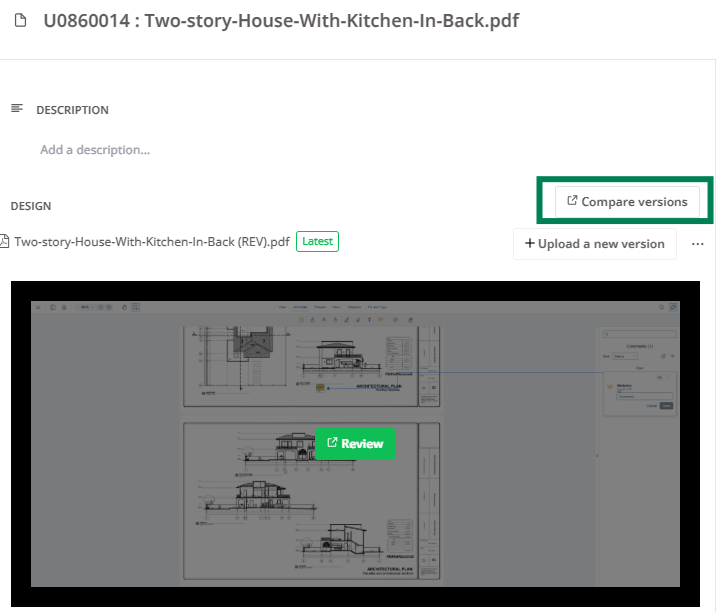
- From the Asset View: Click the Version dropdown menu in the upper navigation bar and select Compare Versions.

- From the Review View: Click the Compare versions button in the top navigation bar, without going back to the asset card.
- Select the Versions

The previous version opens on the left and the latest on the right. To compare different versions, use the dropdown above each pane.
- Open the Change List
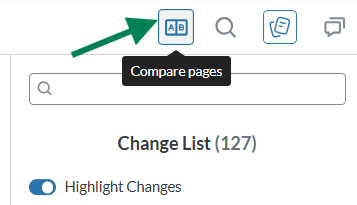
The text changes are highlighted when the comparison loads, and the Change List opens on the right. If you switched to Comments, click the Compare pages button at the top right to bring the Change List back. It lists every text change the comparison detected.
- Review the Highlights
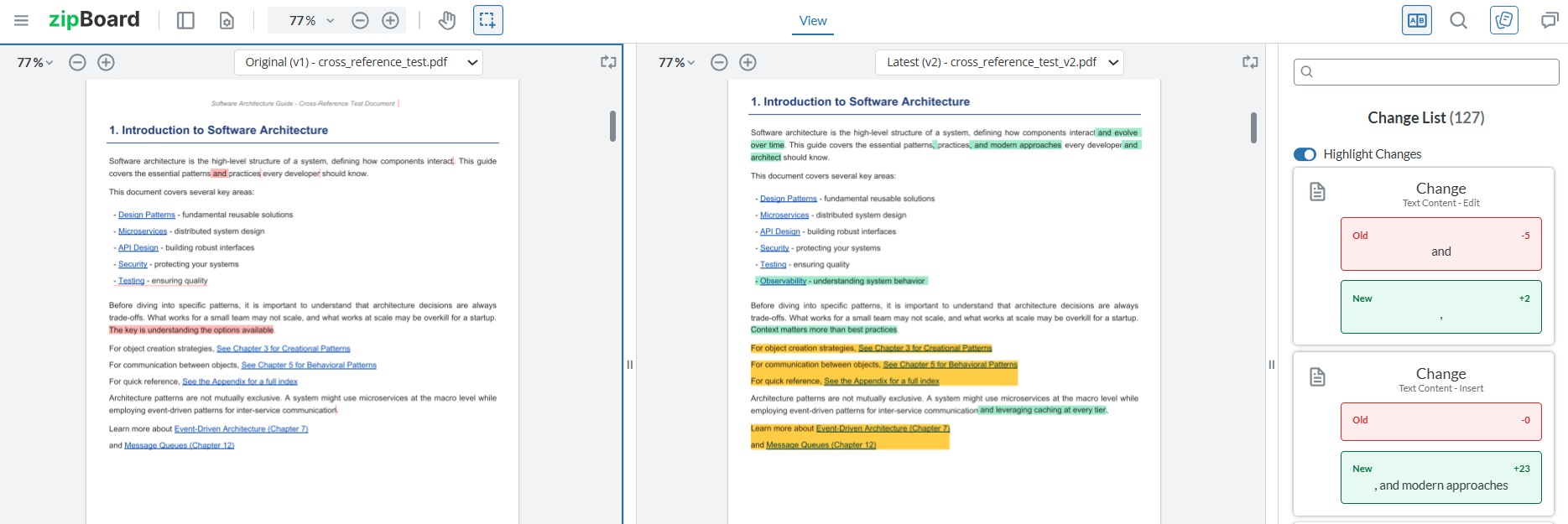
The Change List shows every text change. Click a change to jump to it.
- Red/Pink Highlights: Show text or sections from the older version that were removed or changed.
- Green Highlights: Show new additions or updated text in the newer version. This makes it effortless to scan through pages and instantly see what evolved between drafts without reading line by line.
- Exit comparison mode

When you are finished reviewing the changes and want to return to your normal review workspace, simply click the Exit comparison button in the top navigation bar.
Limitations
- This feature only works in PDF files.
- Version comparison is view-only; to edit and add new comments, click Exit comparison and go to the markup view.
- If you pick versions in the other order (newer on the left), the colours will swap.
Frequently Asked Questions
How many versions do I need to use the comparison tool?
You must have uploaded at least two versions of the PDF document to the same asset for the comparison option to become available.
Does the comparison tool detect formatting changes or only text?
zipBoard uses text change detection to identify textual modifications, additions, and deletions between the selected file versions.
Will comparing versions delete my previous comments or markups?
Not at all. Your historical feedback, review threads, and comments remain safely attached to their respective versions, allowing you to review past discussions alongside the new comparison view.