
Creating Tasks via Annotations in PDF
In zipBoard shared space, many annotation tools do more than just mark up a document, they automatically generate a Task. This allows you to turn feedback into actionable items instantly.
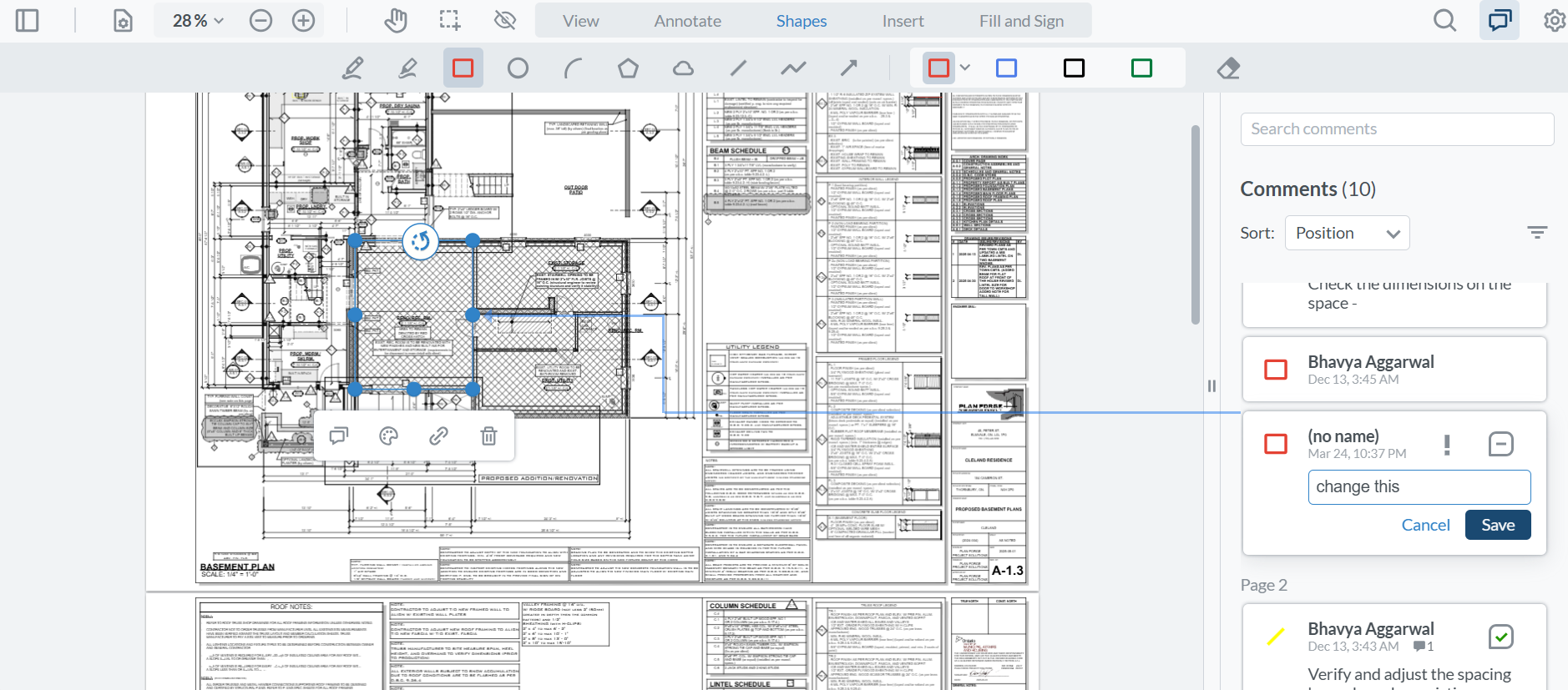
Which Annotations Create Tasks?
Use the table below to see which tools will trigger a task creation and which are for visual reference only.
| Category | Tool | Creates a Task? |
| Markups | Highlight, Underline, Strikeout, Squiggly, Note | Yes |
| Shapes | Rectangle, Ellipse, Arc, Polygon, Cloud | Yes |
| Lines | Line, Polyline, Arrow | Yes |
| Free Hand | Free Hand, Free Hand Highlight | Yes |
| Text | Free Text | No |
| Inserts | Signature, Rubber Stamp, Image | No |
| Fill & Sign | Checkmarks, Dots, Crosses, Signatures | No |
How it Works
- Choose any tool marked Yes from the list above (for example Arrow or Highlight tool).
- Apply the annotation to the specific area you want to discuss.
- As soon as the annotation is placed, a task window will appear. You can then assign a team member, set a priority, and add a description.
Pro-Tips
- Visual-Only Feedback: Use Free Text or Stamps if you want to leave a permanent label on the page without cluttering your task list.
- Precision: Use the Arrow or Rectangle tools for specific UI feedback to ensure the task is clearly linked to the right element.
Note: "Fill and Sign" tools (like Ticks and Dots) are intended for form completion and do not create tracked tasks.