
How to Compare Two SCORM Course Versions Side by Side in zipBoard
zipBoard lets you compare two versions of a SCORM course or eLearning package side-by-side on one screen. Check interaction and layout updates and manually verify if feedback from the previous version has been addressed all without downloading extra files or switching apps.
How to Compare Two SCORM Course Versions from the Asset Viewer
1.Open the SCORM Asset
Navigate to your zipBoard project dashboard, go to Uploads, and select the SCORM course package you want to review. Your project workspace must contain a SCORM asset with at least two uploaded versions.

2.Open the Version Comparison
Click the Version dropdown menu in the upper navigation bar and select Compare Versions. See how to upload a new version here.

3.Select the Versions

Select the versions that you want to compare by clicking the dropdown options.
How to Compare Versions from the Markup View
- Open the Asset and Start Reviewing
Navigate to your document and begin reviewing it in your standard markup workflow view.
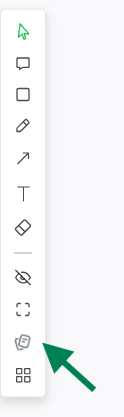
- Click Compare Versions
Click Compare Versions directly in the side bar.
- Pick the Two Versions
Select the older and newer revisions you want to evaluate side by side.

- Click Exit Compare
When you are done evaluating, click Exit Compare to return straight to your markup workspace.

Frequently Asked Questions
Which file types and asset formats can I compare in zipBoard?
zipBoard supports side-by-side comparison across a wide range of asset types, including documents (PDFs), images (PNG, JPG/JPEG, SVG), videos, e-learning courses, and live web URLs.
How do I select which versions to compare?
Within the comparison viewer, top toolbar dropdowns allow you to assign your base version in the left pane and your target version in the right pane, making it easy to cross-check any two iterations from your uploaded version history.
Can I annotate or add feedback pins directly inside the side-by-side comparison view?
The split-screen comparison mode is designed specifically for side-by-side visual inspection. To drop feedback pins, markup annotations, or log actionable tasks, simply switch back to the standard single-asset review mode.